Finishing a document in Word
After creation the document opens in Word with the primedocs tab. It contains the commands you need to finish the document: change details, insert content, set colours in the corporate design, print and send. Every button in detail: Word ribbon reference.
Applies to: Word on Windows with primedocs Desktop (Office COM add-in). A document created in primedocs Web and downloaded shows the tab only if primedocs Desktop is installed on the computer.

Changing details afterwards
Details that primedocs inserted are changed via the tab, not in the text:
- Properties reopens the properties dialog. Adjust recipient, subject or other fields and confirm with OK. The document is updated.
- Profile switches the sender. Header and footer, signature and contact details follow the new profile.
- Language switches the document language, including the spell-check language for the whole document.
Fields in header and footer are reset from the properties the next time the document is updated. A change made by hand is then lost. The body text is yours, but the fields belong to the properties dialog.
Working through open items with Quick Check
If a Quick Check is set up for the template, the button of that name appears. It opens a side panel that leads to the input fields set up for it and shows completion hints. Clicking an entry jumps to the place in the document. As soon as a field has content, it counts as completed.
Inserting content
Snippets opens the snippet pane with your own and the shared snippets. How to insert snippets and create your own: Inserting and managing snippets.
Colours and format in the corporate design
- Fill colour, Line colour and Text colour offer only the colours of your corporate design.
- Standard resets the current paragraph to the template's formatting when foreign formats have come along while copying from other documents.
- The remaining formatting buttons correspond to those of Word.
Print, send, output
- Print opens the Word print dialog.
- Send puts a copy of the document into a new e-mail, as a Word attachment or as a PDF attachment.
- Output appears only if your organisation has set up output management. The button generates the output and forwards it according to the stored configuration, for example to the print centre or the archive.
- Spelling starts the spell check.
Dispatch Manager
If the Dispatch Manager is set up for the template, the button of that name appears. It helps when a letter goes to several recipients and labels, enclosures or cover letters belong to it.
- Click Dispatch Manager. The dialog lists the recipients of the document.
- Per recipient, define what is produced, for example Address label, the dispatch type (A or B mail) and the output channel.
- Generate produces the dispatch documents as PDF, Print sends them to the chosen printer.
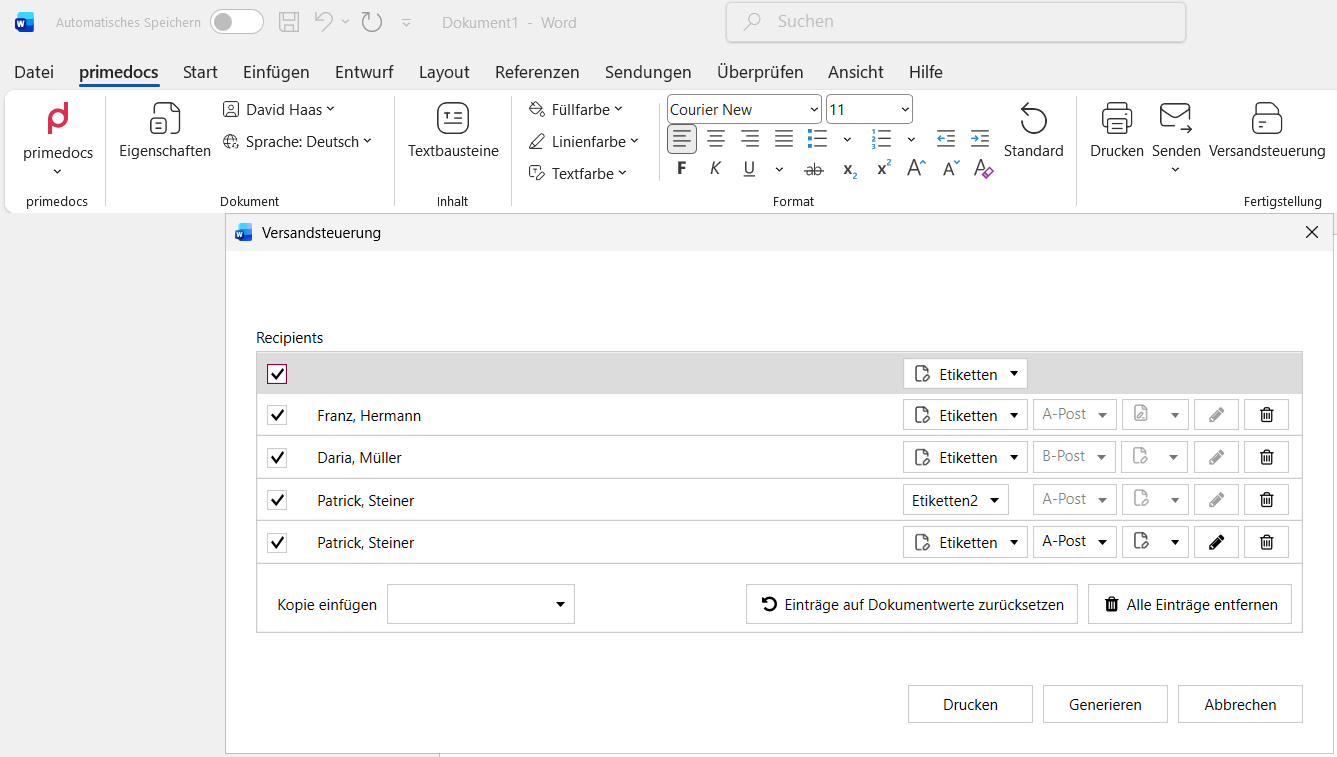
The assignment is saved in the document. Close the document and open it again later, and the selection is still there. Cancel saves nothing.
The Dispatch Manager exists only in Word with primedocs Desktop. It is not available in primedocs Web or the web add-in.
If something does not work
| You see | What helps |
|---|---|
| The primedocs tab is missing | Have it checked that primedocs Desktop with the Word add-in is installed and the add-in is enabled. A downloaded Web document shows the tab only with primedocs Desktop installed. |
| Many buttons are greyed out | Check that a document created with primedocs is open. If the problem persists, contact support. |
| The sender is the old one again when reopening | Sender details changed by hand in the text are overwritten on opening. Change details via Profile or Properties. |
| Quick Check, Output or Dispatch Manager are missing | These functions appear only if they are set up for the template or your organisation. |
| Foreign fonts or colours after pasting | Select the paragraph and click Standard. |