Finding templates
primedocs shows only the templates released for you. Which ones those are depends on your profile, your organisational unit and the permissions your organisation has granted. If a template you expect is missing, see Help and troubleshooting.
Applies to: primedocs Web, primedocs Desktop, web add-in. Template groups are defined centrally and are the same everywhere, but the presentation differs.
- primedocs Web
- primedocs Desktop
- Web add-in
Browsing folders
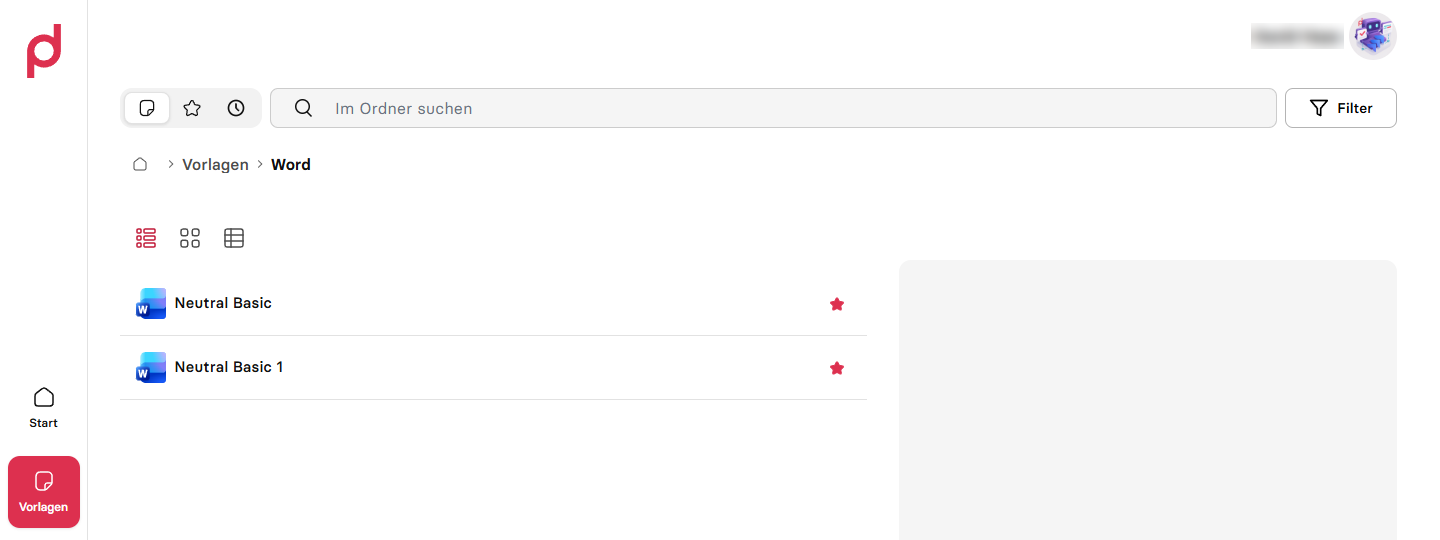
- Open Templates in the navigation. Template groups appear as folders.
- Click a folder. The breadcrumb above the list takes you back.
- Use the buttons at the top right to switch between List view and Grid view. If the window is wide enough, the Detail view with a preview of the template is also available.
Searching
Type into the search box at the top. Inside an open folder primedocs first searches only that folder. Under Filter you can widen the search to all templates and restrict it to template types, for example only Word or only e-mail.
When searching all templates, the first hits appear directly below the search box. Use the up and down arrow keys to pick a hit, Enter opens it. With no hit picked, Enter shows all hits on a page of their own. Escape closes the hit list.
Favourites and recently used
- Click the star next to a template to mark it as a favourite or remove the mark.
- In the header of the template overview, switch between Templates, Favourites and Recently used.
- The start page shows favourites and recently used templates directly, plus new and changed templates of the last few days under News.
Browsing template groups
- Switch to the Templates tab.
- Choose a template group on the left. The templates of the group appear in the middle, the preview of the selected template on the right.
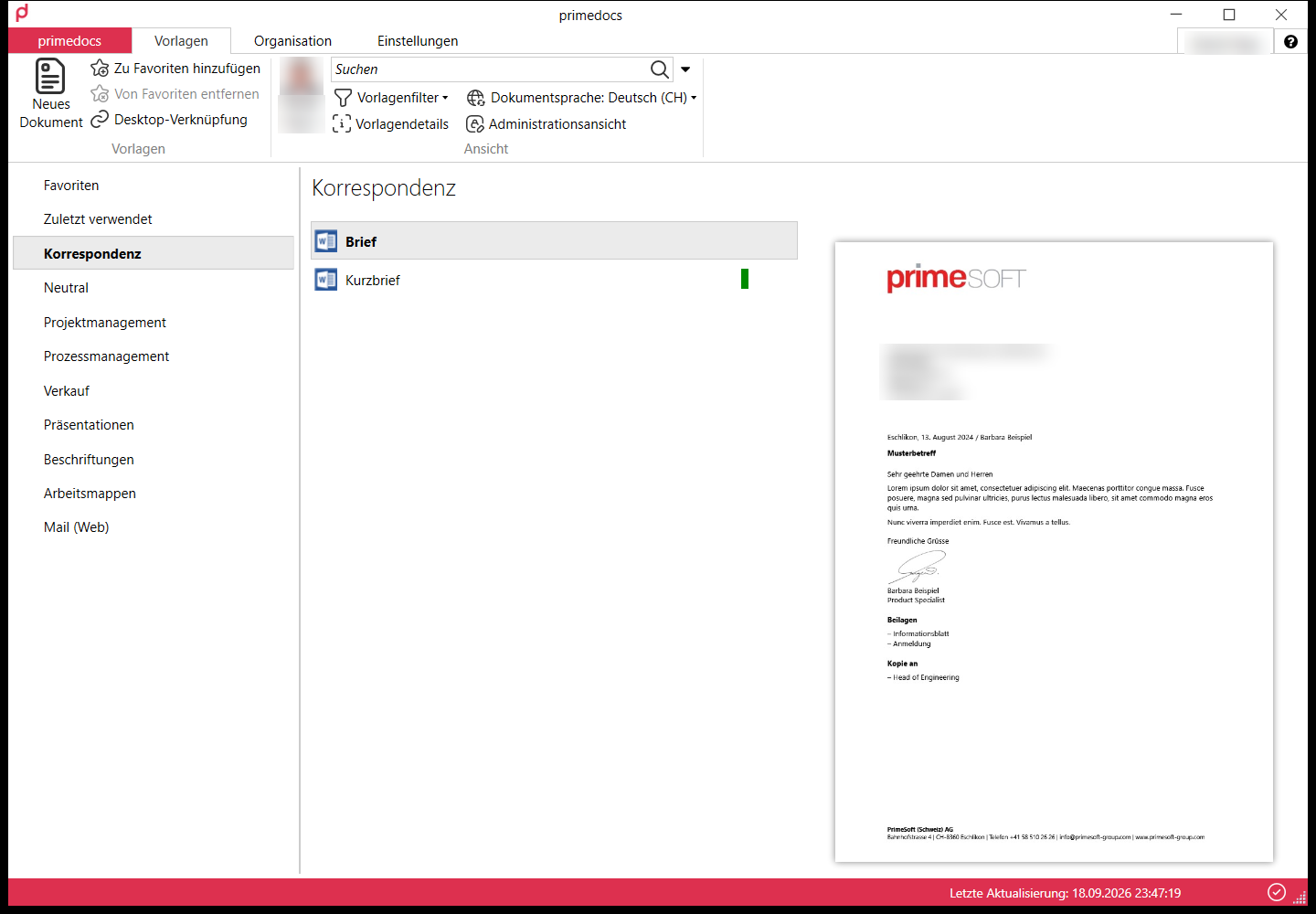
Only groups containing templates released for you are shown. The selection also depends on the chosen profile and document language.
Searching
Type into the search box in the middle. Template names, descriptions, tags and tag descriptions are searched.
Favourites
Select a template and click Add to favourites. It appears with a star in the Favourites group. Remove favourite takes it out again. The Recently used group fills itself.
Desktop shortcut
For a template you need every day: select it and click Desktop shortcut. Double-clicking the shortcut starts the template directly, without opening primedocs first.
In the task pane
In the task pane of new Outlook and in the Office web add-in for Word, Excel and PowerPoint, Favourites and Recently used appear as pinned rows at the top of the template overview. The folders follow below. Search works as in primedocs Web. In Word, Excel and PowerPoint the add-in only shows the templates of the open application.
On narrow screens the navigation moves into the header bar. In Outlook Mobile it is not shown.
Searching by tag
In primedocs Web and in the web add-ins, tags: in the search term restricts the search across all templates to templates with specific tags:
| Input | Finds templates |
|---|---|
tags:Finance | with the tag «Finance» |
tags:Finance;Contract | with both tags |
tags:Finance|HR | with at least one of the tags |
tags:"New customers" | with a tag that contains spaces |
Quote tags:Finance | with the tag «Finance» whose name or description contains «Quote» |
; links tags with «and», | with «or». Both can be combined: tags:A;B|C finds templates with A and B, or with C. Upper and lower case do not matter, neither for tags: nor for the tag names.
Search history
primedocs Web and the web add-ins remember your last searches across all templates in this browser, separately for each data source. Click into the empty search box and your last searches appear. An entry opens the results of that search with the filter chosen at the time, the cross next to it removes it. In the search history, too, you pick with the arrow keys and Enter.
If something does not work
| You see | What helps |
|---|---|
| An expected template is missing | Check profile and document language and synchronise in primedocs Desktop. If it stays missing, ask support to check the release. See Help and troubleshooting. |
| The search finds nothing | In primedocs Web, widen the search scope to all templates under Filter or shorten the search term. |
For advanced users
Template groups and permissions are maintained centrally by the layouter or administrator. Users do not create their own groups. Favourites and Recently used are the only personal groups. Whoever manages templates works in the administration view of primedocs Desktop.