Profiles and deputisation
A profile links your user data with an organisational unit. The active profile determines who appears as sender in the document, which signature is inserted and which address appears in the footer. One person can have several profiles, for example:
- Maria Muster, Head of Purchasing
- Maria Muster, Safety Officer (different function, different phone number)
- Profile of Peter Beispiel, which he has shared with her for deputisation
Applies to: primedocs Web and primedocs Desktop. Limits: shared profiles are read-only in primedocs Web and can be edited in primedocs Desktop. Sharing itself is a primedocs Desktop function.
User and profile
- User is your account. There is exactly one per person, and the data comes from your organisation's directory.
- Profile is a role of that account. A profile is created automatically on first sign-in, and you create further ones yourself.
Profile fields take their values from the user data (name, phone) and from the organisational unit (company, address, logo) and follow changes at the source. In primedocs Web a chain symbol marks an inherited field. In primedocs Desktop a value changed by hand appears black instead of dark grey. If you enter your own value, it applies only to this profile and is no longer overwritten. Synchronize (Web) or Inherit from parent (Desktop) restores the value from the source.
- primedocs Web
- primedocs Desktop
Managing profiles
Click your name at the top right and choose User & Profiles. The panel shows your profiles and, in a separate area, the profiles others have shared with you.
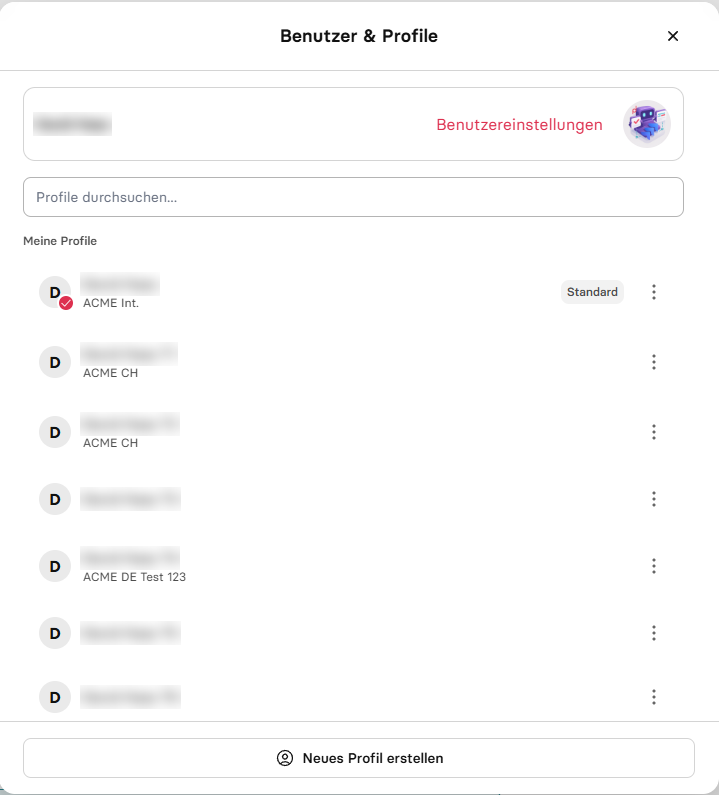
- Open a profile: click the profile, change fields, Save. Fields are recorded per document language. The selector next to User data switches the language. What is only entered in the main language also applies to the other languages.
- Create new profile adds another profile. Choose a name you will recognise later, for example "MMU Safety Officer".
- Via a profile's options you set it as default profile or delete it.
- User settings opens the user data, separately from the profiles.
Profile picture and signature image
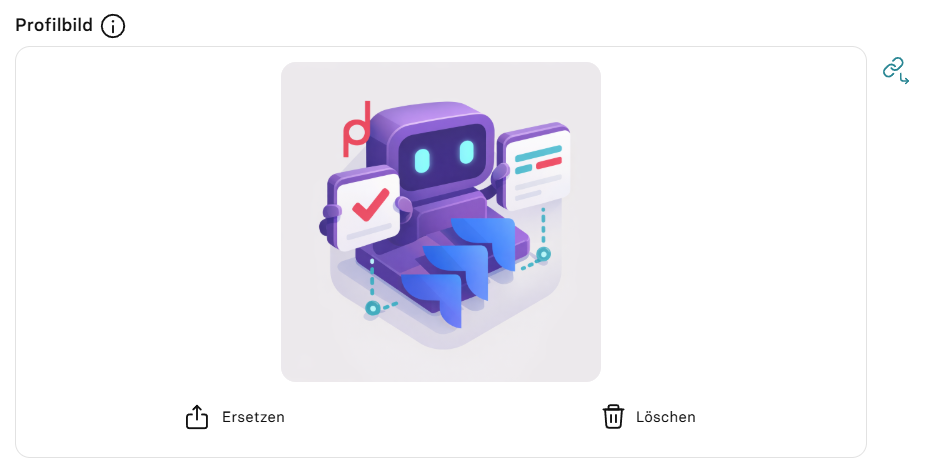
An image field has three states: inherited from the user data (chain symbol), own image via Replace, or deliberately empty via Delete, for example for a functional mailbox without a signature. Synchronize cancels your own setting again. As long as the change is not saved, the button is called Undo. Besides PNG and JPG, SVG graphics are also possible and stay sharp at any size.
Choosing the profile for a document
You choose the profile in the template form, at the top next to the language, not in the user menu. As the document's profile, shared profiles are available there for which you have the correspondence right. With the co-signature right a profile appears only as an additional profile for a second signature.
Managing profiles
Switch to the Organisation tab and choose Profiles on the left.
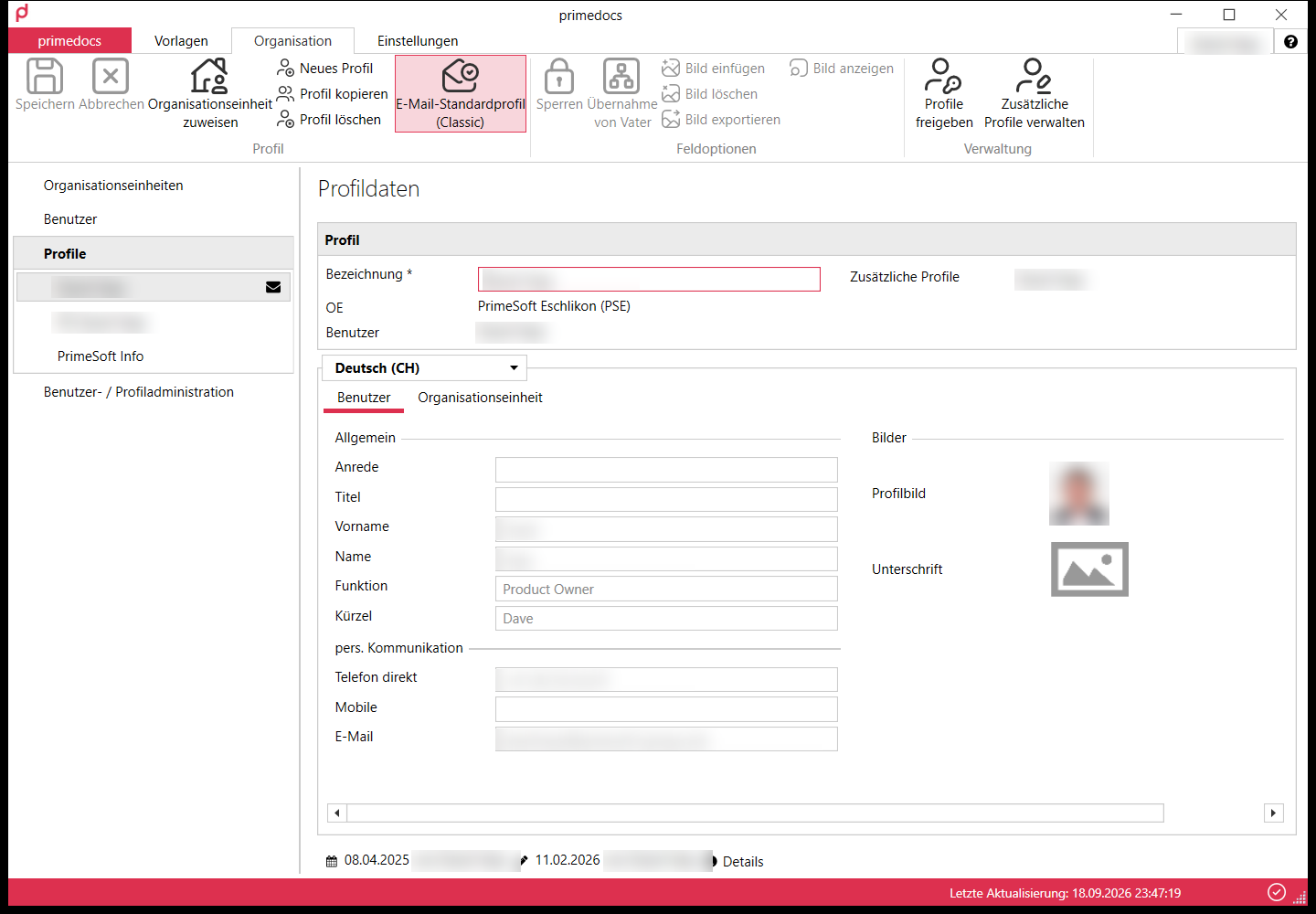
- Change the Description: click into the field, enter a recognisable name, Save.
- Copy profile creates another profile as a copy. Adjust name, function, phone, Assign organisational unit if needed, Save.
- Default e-mail profile makes the selected profile the default for e-mail templates in Desktop. It carries an envelope symbol. The default profile for Web e-mail templates is set in primedocs Web.
- Insert image, Delete image, Export image are active once an image field (signature, profile picture) is selected. Inherit from parent restores the image from the user data.
Save changes with Save or Ctrl+S before leaving the tab.
Choosing the profile for a document
On the Templates tab, click the button with profile picture and profile name and choose the profile. It applies to all documents you create afterwards and can still be switched in the open document via Profile in the ribbon.
Manage additional profiles defines which of the profiles shared with you are available and in which order.
Sharing a profile (deputisation)
So that a colleague can write in your name or use your signature for a co-signature, you share your profile with her. The details then reach the document completely and correctly, and the deputisation remains traceable. This is more reliable than changing sender details by hand in Word.
Sharing is a primedocs Desktop function. Administrators can also grant shares in the Web Admin.
- In primedocs Desktop, on the Organisation tab, select your profile and click Share profile.
- Choose the person with Add.
- Set the three rights individually per person:
- Co-signature: your profile may be used for a co-signature, with or without signature image.
- Correspondence: the person may create documents in your name, "on behalf of" or fully assuming your identity.
- Profile editing: the person may edit your profile (fields, signatures, organisational unit). Without this right the share is read-only.
- Confirm with OK.
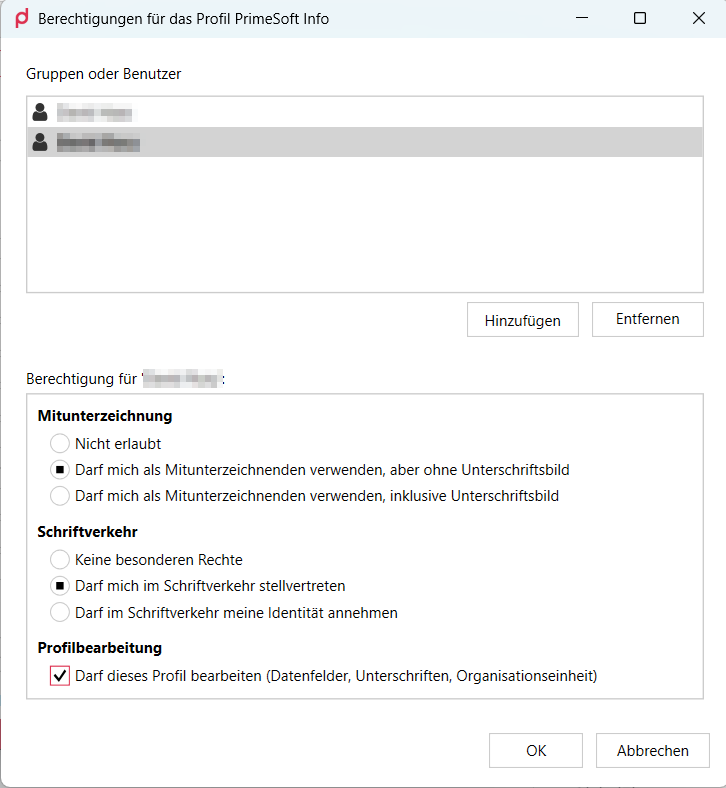
The three rights are independent: whoever has only profile editing may maintain the profile but not create documents with it.
Working with a shared profile
- Shared profiles appear in your profile list with a note on the owner ("Profile of …").
- For a document, choose it like your own profile if you have the correspondence right. For a co-signature it appears in the template form under additional profile if you have co-signature.
- Editing works in primedocs Desktop if you have profile editing. In primedocs Web you open shared profiles read-only.
- Delete, share on and set as default profile remain reserved for the owner.
- When assigning an organisational unit to someone else's profile, only the units the owner may use are available. This works only with a connection to the server, not offline.
If something does not work
| You see | What helps |
|---|---|
| The wrong sender is in the document | Check the chosen profile and its details. Switch via Profile in the document. |
| A field shows an old value although the directory is correct | Check whether the field carries its own value. If so, click Synchronize or Inherit from parent. Otherwise have the data reconciliation checked. |
| The shared profile is missing from the selection | The document's profile requires the correspondence right. In primedocs Desktop, also check under Manage additional profiles whether it is shown. |
| A shared profile cannot be edited in Web | Read-only in this version. Edit in primedocs Desktop. |