Presentations with PowerPoint
A presentation created with primedocs brings along your organisation's slide layouts, colours, fonts and image library. The primedocs tab in PowerPoint helps to keep slides in the design, arrange objects cleanly and send the presentation. Every button in detail: PowerPoint ribbon reference.
Applies to: PowerPoint on Windows with primedocs Desktop (Office COM add-in).

Inserting slides and images
- Slides inserts a new slide in the chosen slide layout. A preview appears beside each layout.
- Images opens your organisation's image library. Which images are offered depends on the selected slide.
Bringing a slide back into the design
If a slide has lost its alignment or picked up foreign fonts and colours, select it and click Check slide. Change layout switches the slide to another slide layout.
Bringing a foreign presentation into your own design
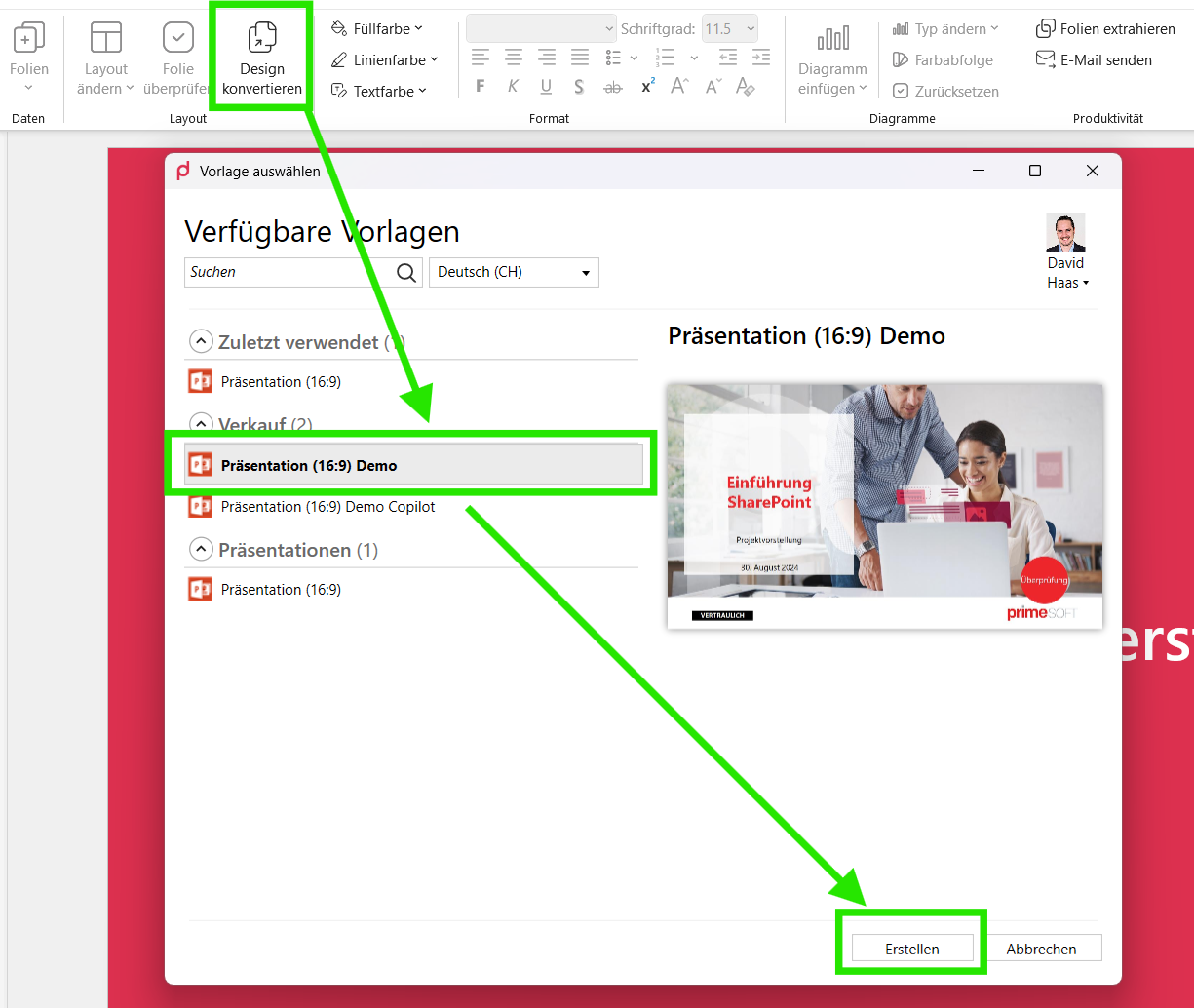
Design Conversion takes the content of a presentation not created with primedocs into a new presentation in your own design. Choose the target template in the dialog and click Create.
Colours and charts
Colour management offers fill, line and text colours only from the corporate design. Under Charts you insert a chart in the right colour scheme, change the type, rotate the colour sequence or reset a chart to the defaults with Reset.
Creating an agenda
Table of contents produces an agenda slide whose entries refer to the slides:
- Add opens the slide selection on the right. Select slides and Apply.
- If needed, enable Number entries automatically and Insert page numbers.
- Create creates the agenda. If it already exists, the button is called Update.
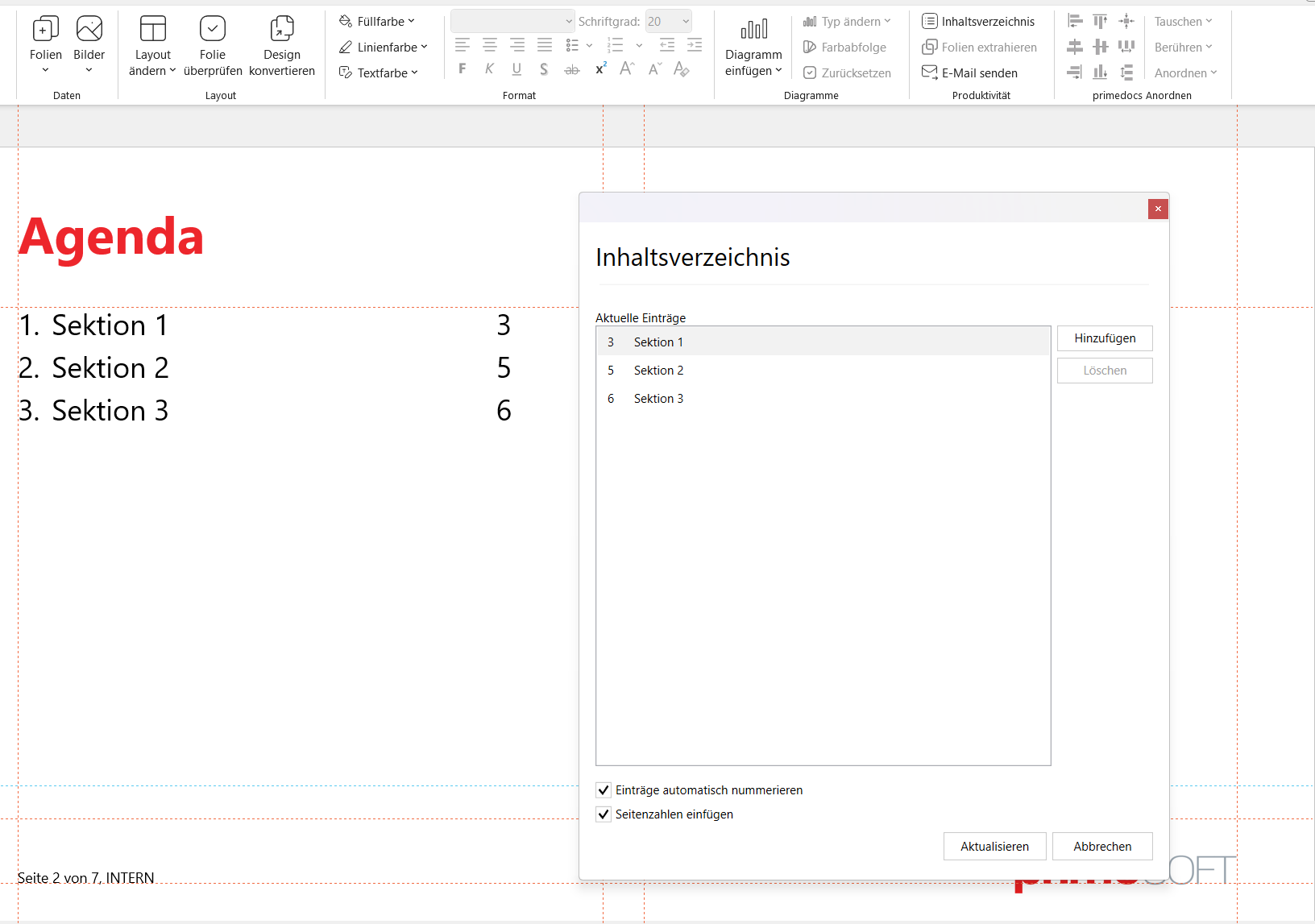
References to deleted slides and duplicate entries are reported by the dialog.
Arranging objects
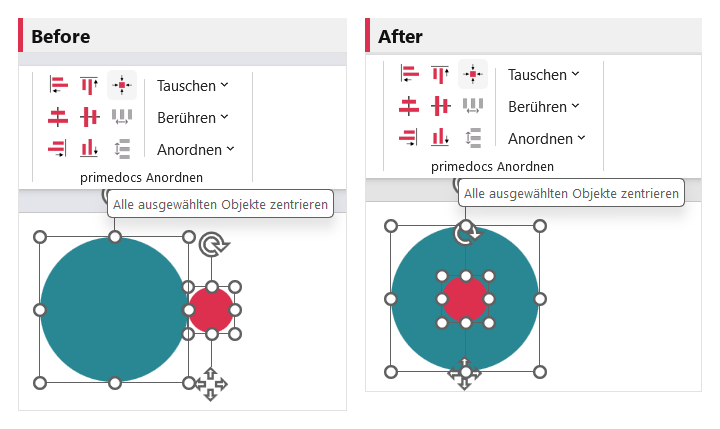
The primedocs Arrange group positions selected objects with one click. The last selected object is the reference. It stays put while the others align to it.
- Align (from 2 objects): align to an edge or axis of the reference object, and Arrange centred centres on both axes.
- Distribute (from 3 objects): equal spacing between the outermost objects.
- Swap (exactly 2 objects): swap positions.
- Touch (from 2 objects): push edges flush against the reference object, also staggered diagonally.
- Arrange: as matrix, circle, rectangle or triangle, centred on the slide. With objects of different sizes primedocs first proposes a uniform size.
Transferring formatting from one object to others
- Right-click the source shape, Copy formatting.
- Select the target objects, right-click, Apply formatting and choose what is transferred: Formatting (font, paragraph, margin, line, shape type), Colour (fill, line, text) or Size (width, height), individually or All.
An object can thus take over only the colours, for example, while keeping size and position.
Extracting and sending slides
- Extract slides saves the selected slides as a new file, as PowerPoint presentation or PDF. Comments and notes are kept only if you tick them. Save opens the save dialog, Send mail hands the slides directly to e-mail sending.
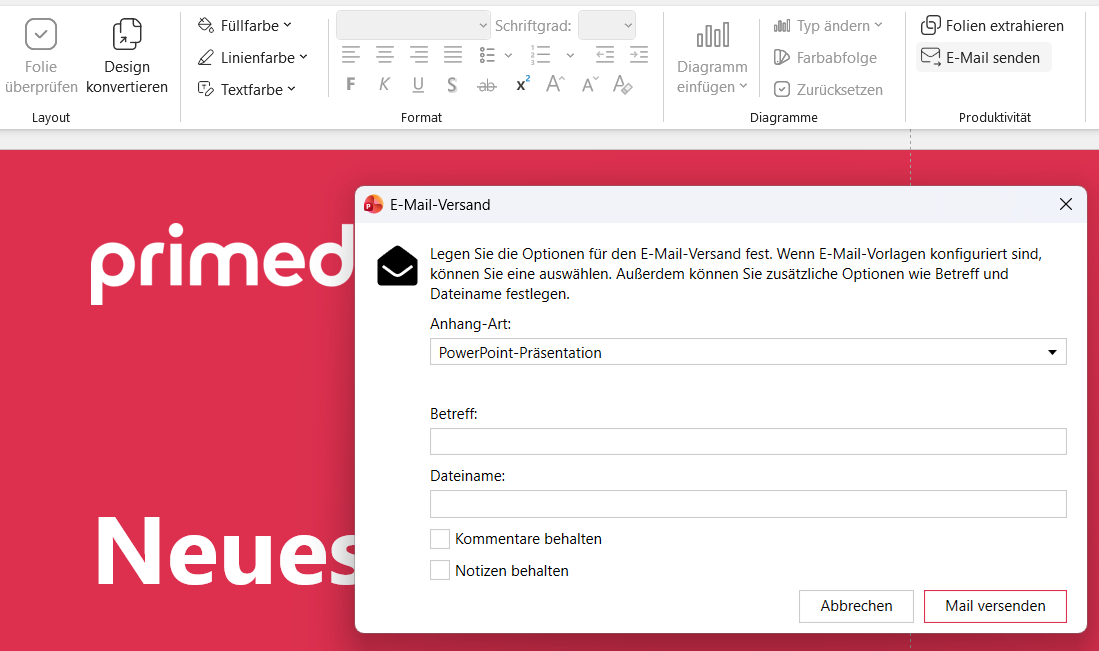
- Send mail creates a new e-mail with the presentation as attachment. In the dialog you choose an e-mail template (brings layout and signature), the attachment type (PowerPoint or PDF), subject and file name.
Which Outlook opens is determined by the template: a template of type "E-mail (classic)" opens classic Outlook. A template of type "E-mail" produces an .eml file opened by the program registered in Windows, usually new Outlook. Without a template, the preferred Outlook variant on the device decides.
Output appears only if your organisation has set up output management and forwards the presentation according to the stored configuration.
If something does not work
| You see | What helps |
|---|---|
| Many buttons are greyed out | Check whether the presentation comes from a primedocs template. Otherwise, use Design Conversion. |
| Arrange buttons are grey | Check the number of selected objects for the desired function (2, 3 or 4, exactly 2 for Swap) and whether the presentation is protected. |
| Objects have a different size after Apply formatting | Undo and transfer only Colour or Formatting. |
| Notes are missing in the extracted file | For PowerPoint output, check whether Keep notes was ticked. A PDF has no notes. |