primedocs Web at a glance
primedocs Web runs in the browser on PC, tablet and mobile phone. This page names the areas of the interface. The guides are under Guides.
Navigation
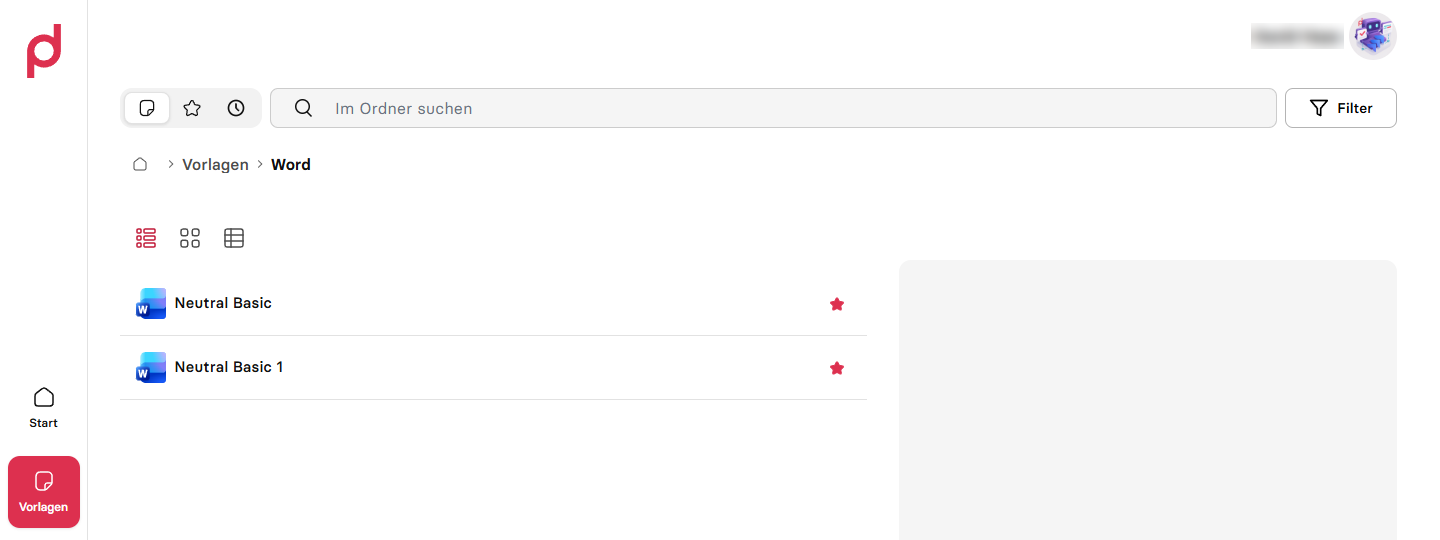
On the left (at the top on narrow screens) are Start and Templates.
- Start shows favourites, recently used templates and, under News, new or changed templates of the last few days.
- Templates opens the template overview with folders, search, filter and the list, grid and detail views. In the header you switch between Templates, Favourites and Recently used.
Search
The search box at the top searches templates by name. In an open folder only that folder at first. Filter widens the scope and restricts template types.
When searching all templates:
- The first hits appear below the search box. The arrow keys pick a hit, Enter opens it or, with nothing picked, the page with all hits. Escape closes the list.
tags:restricts to tags:tags:A;Bfor A and B,tags:A|Bfor A or B, tags with spaces in quotes. Details under Finding templates.- In the empty search box the Search history shows the last searches in this browser. An entry can be run again or removed via the cross.
User menu
At the top right via your name or picture:
| Entry | Purpose |
|---|---|
| Settings | UI language, document language, colour theme |
| User & Profiles | View and edit profiles, default profile, new profile, User settings with the user data |
| Tenants | Switch between primedocs instances, only with several tenants |
| Integrations | Sign-in to connected services: Purview, OneDrive, business systems (GEVER records management systems such as CMI or Fabasoft, ERP, CRM) |
| Executions | Status and results of longer-running creations |
| About primedocs | Version information |
| primedocs Help | Help link, if stored by the organisation |
| Web Admin | Only with administration rights |
| Sign out | End the session |
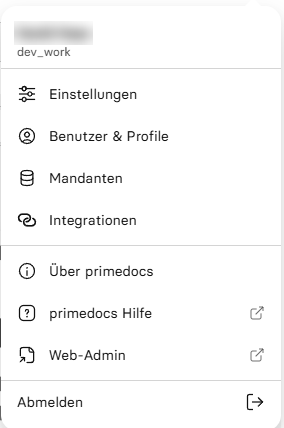
Settings and management views open as a dialog above the page, on narrow screens as a panel from the bottom edge. Close returns.
Template form
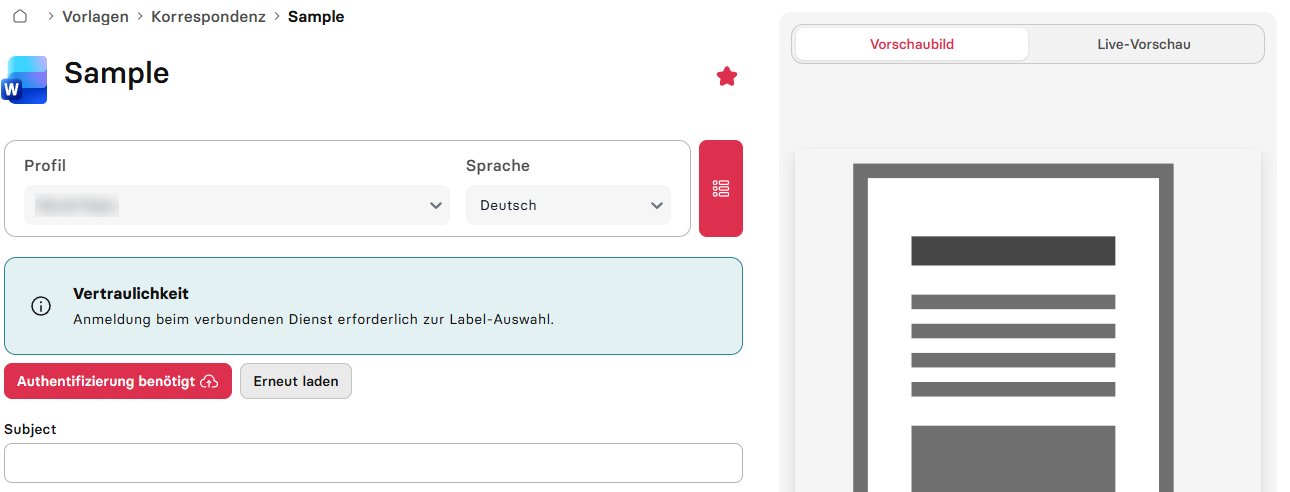
Clicking a template opens its template form:
- At the top Profile and Language.
- Below, the template's fields, grouped in collapsible sections. With several named groups, a menu in the form header if group navigation is enabled.
- The Sensitivity field if the template offers a sensitivity label.
- On the right the preview with the switch Preview image / Live preview (live preview for supported templates).
- At the bottom the output, usually Create & Download.
Connect banner
If primedocs Web is started from a business system, a banner at the top shows Connect mode. Close in the banner leaves it. See Starting from a business system.
Messages
Errors and notices appear as a notification at the edge of the screen. If an action requires a sign-in, the Sign-in required dialog opens with Retry.