Excel ribbon
In a workbook created with primedocs, Excel shows the primedocs tab. The guide is under Workbooks with Excel.
Applies to: Excel on Windows with primedocs Desktop (Office COM add-in).

The ribbon is built like the ones in Word and PowerPoint. The first buttons (primedocs, Properties, Profile, Language) are identical everywhere.
primedocs
primedocs: switches to the template overview in primedocs Desktop. The menu opens the Help.
Workbook
Properties: reopens the properties dialog.
Profile: switches the profile.
Language: switches the document language.
Apply theme: transfers the design colours and fonts to the workbook, also to a foreign one. Active once profile and language are chosen and no cell is being edited.
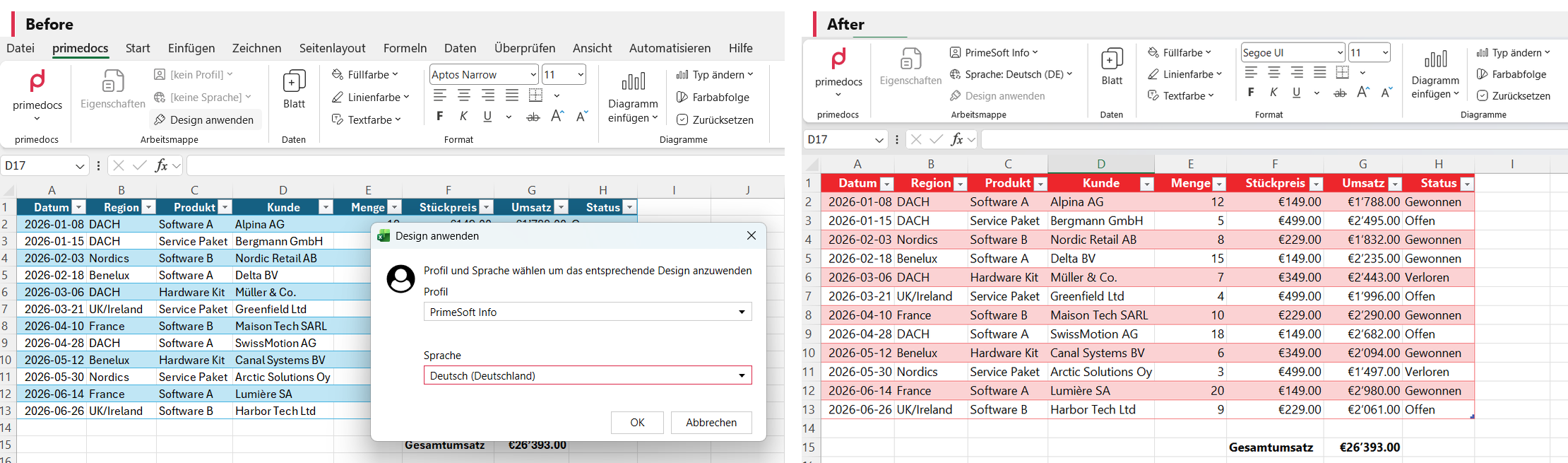
Data
Sheet: inserts a worksheet with the correct colour and font theme.
Format
Fill colour / Line colour / Text colour: colours according to the design of the organisational unit. Each of the three buttons is only available if the colour theme of the organisational unit defines colours of that kind for Excel and the workbook is neither read-only nor marked as final.
Text formatting: font and size, alignment, borders, bold, italic, underline, strikethrough (the Excel tools, repeated here).
Charts
Insert chart: chart of the chosen type in the organisation's colour scheme.
Change type: switches the chart type.
Colour sequence: rotates the colour order within the corporate design.
Reset: restores colours, fonts and other design settings of the chart.
Productivity
Output: generates the output according to configuration. Appears only with output management set up (see Output Management).
In a workbook not created with primedocs, many buttons are greyed out. Apply theme still transfers the design colours and fonts.