primedocs Desktop at a glance
primedocs Desktop is the Windows application. It consists of the primedocs application with three tabs and the Office COM add-ins for Word, Outlook, PowerPoint and Excel. This page names the areas. The guides are under Guides, the add-in ribbons under Word, Outlook, PowerPoint and Excel.
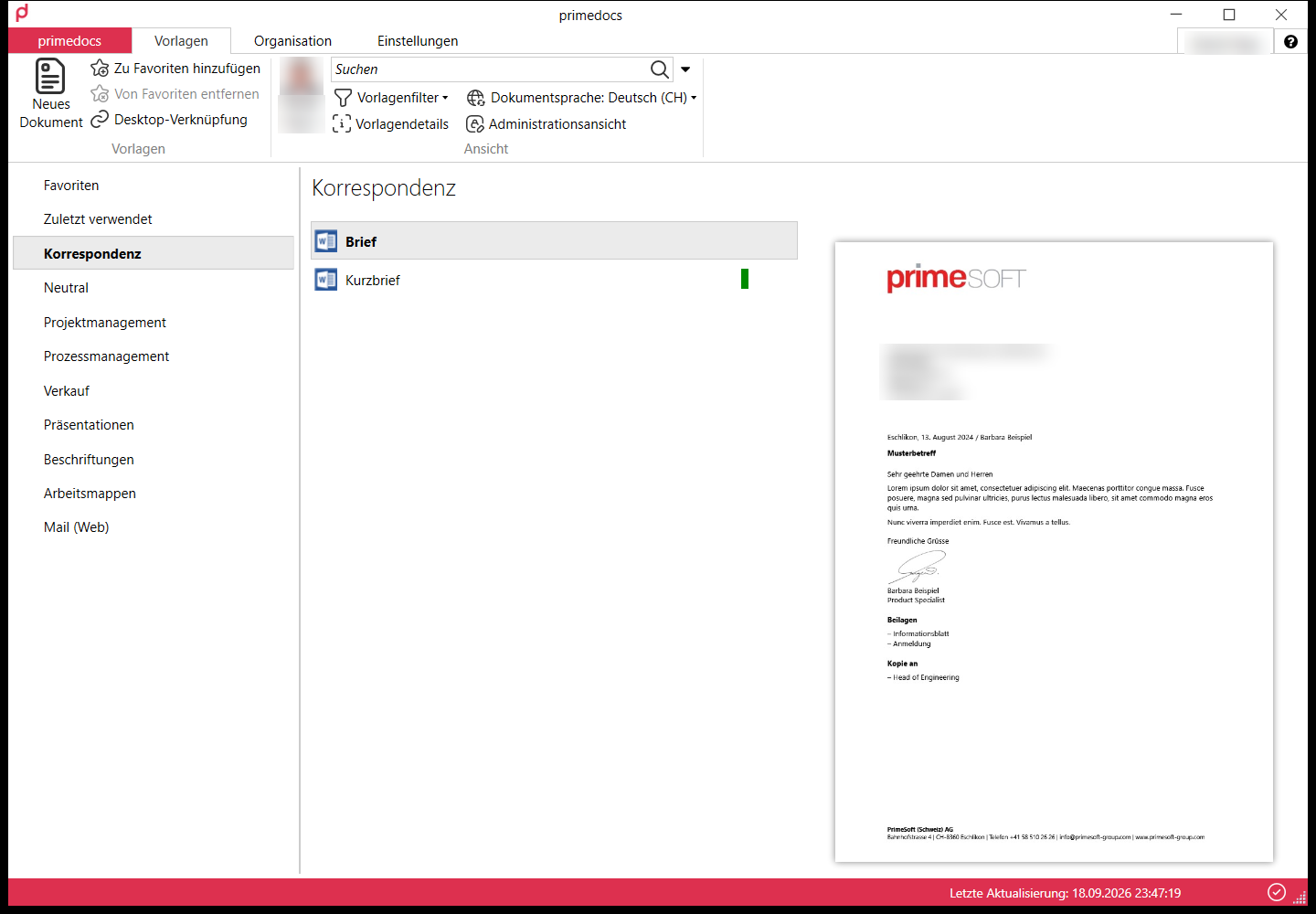
"Templates" tab
| Area or button | Purpose |
|---|---|
| Template groups (left) | Centrally defined groups. Only groups with released templates appear. Favourites and Recently used are your personal groups. |
| Templates (middle) | Templates of the chosen group |
| Preview (right) | Preview of a document from the selected template |
| Search box | Searches template names, descriptions, tags and tag descriptions |
| New document | Creates a document from the selected template (also double-click on title or preview, and the context menu) |
| Add to favourites / Remove favourite | Maintains the Favourites group |
| Desktop shortcut | Creates a shortcut to the selected template on the Windows desktop |
| Profile selection (button with profile picture and name) | Active profile for the next documents |
| Document language | Language for the next documents |
| Filter templates | Filters the list |
| Administration view | Only with templating permission: edit templates, see Administration view |
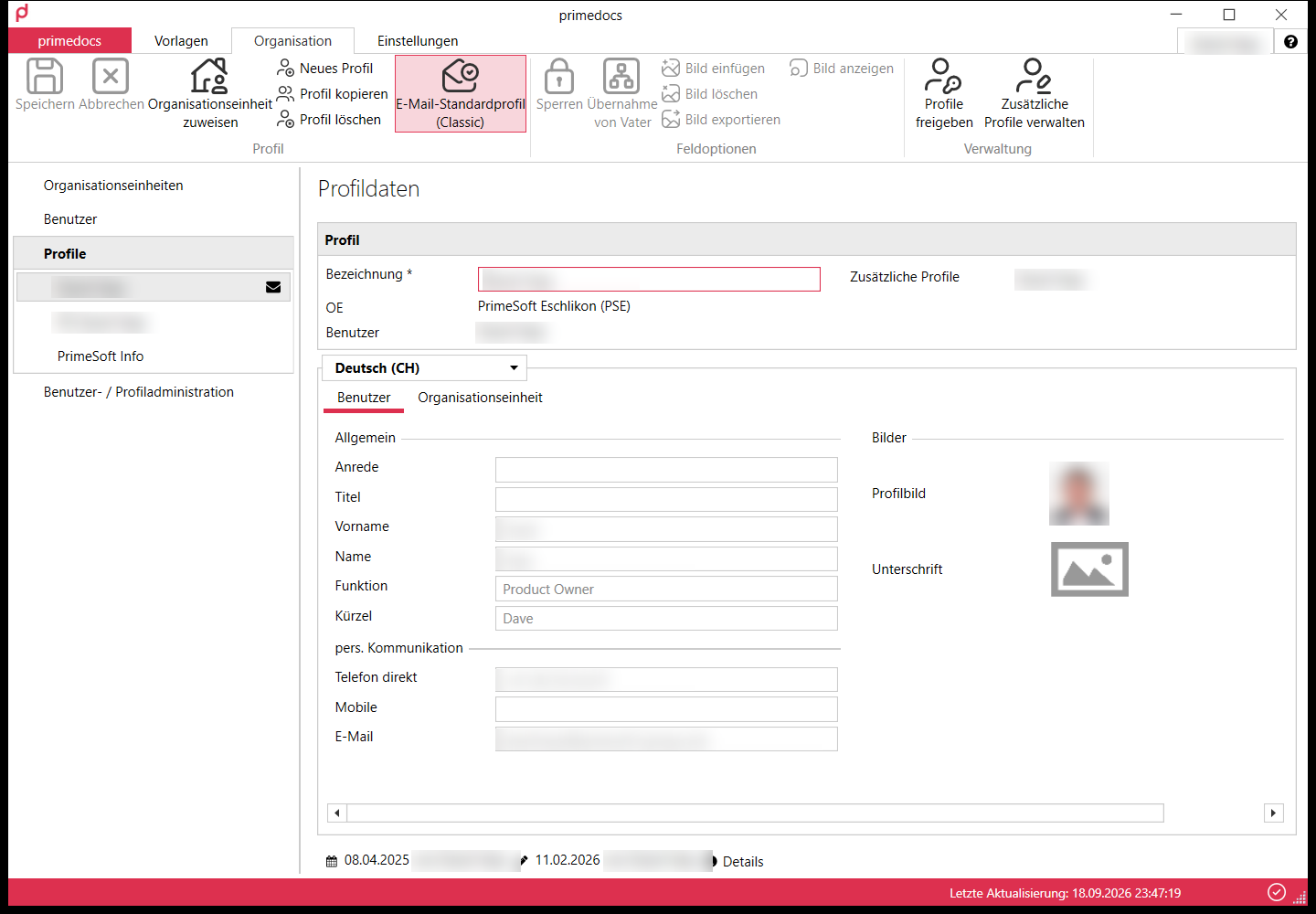
"Organisation" tab
| Area or button | Purpose |
|---|---|
| Users (left) | Your user data from the directory (check only) |
| Profiles (left) | Your profiles and those shared with you |
| User / Organisational unit tabs (middle) | Fields from the user data and from the organisational unit |
Save (Ctrl+S) | Saves changes to the profile |
| New profile, Copy profile, Delete profile | Manage profiles |
| Assign organisational unit | Assigns another unit to the profile |
| Default e-mail profile | Default profile for e-mail templates in Desktop (envelope symbol) |
| Inherit from parent | Resets a field to the value from the user data or the organisational unit |
| Insert image / Delete image / Export image | For signature and profile picture, active with a selected image field |
| Share profile | Grants rights for co-signature, correspondence and profile editing |
| Manage additional profiles | Selection and order of the shared profiles |
Further buttons (create organisation, assign users, permissions) appear only with administration rights.
"primedocs" tab
| Menu | Entries |
|---|---|
| Account | User information (connection to the server), Change data source (switch tenant, reset offline cache) |
| Options | Select skin, Start automatically, Hardware acceleration, Languages (UI language) |
| Help | primedocs user guide, Send report, primedocs log files, Versions and connection |
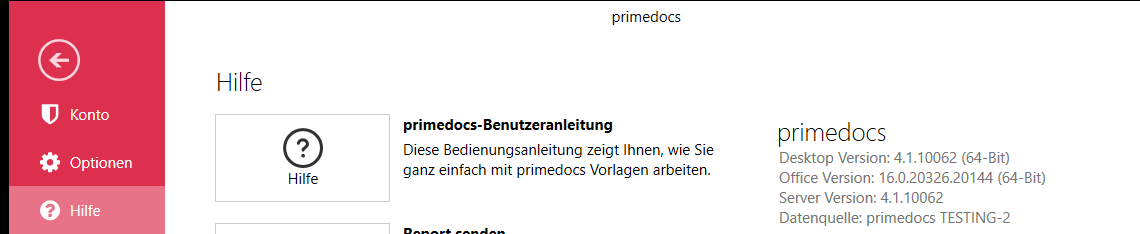
Versions and connection shows Desktop, Office and server version, tenant («Data source») and server address. For Desktop and Office version the bitness (32 or 64 bit) is shown if it can be determined. Offline, the server version reads "Unknown (Offline)". With Click-to-Run Office the exact build number is shown, with MSI Office only the main version (for example 16.0).
Status bar
At the bottom right, Last update shows the time of the last synchronisation. Clicking it offers Synchronise. The primedocs icon in the Windows notification area also offers Synchronise via right-click.
Properties dialog
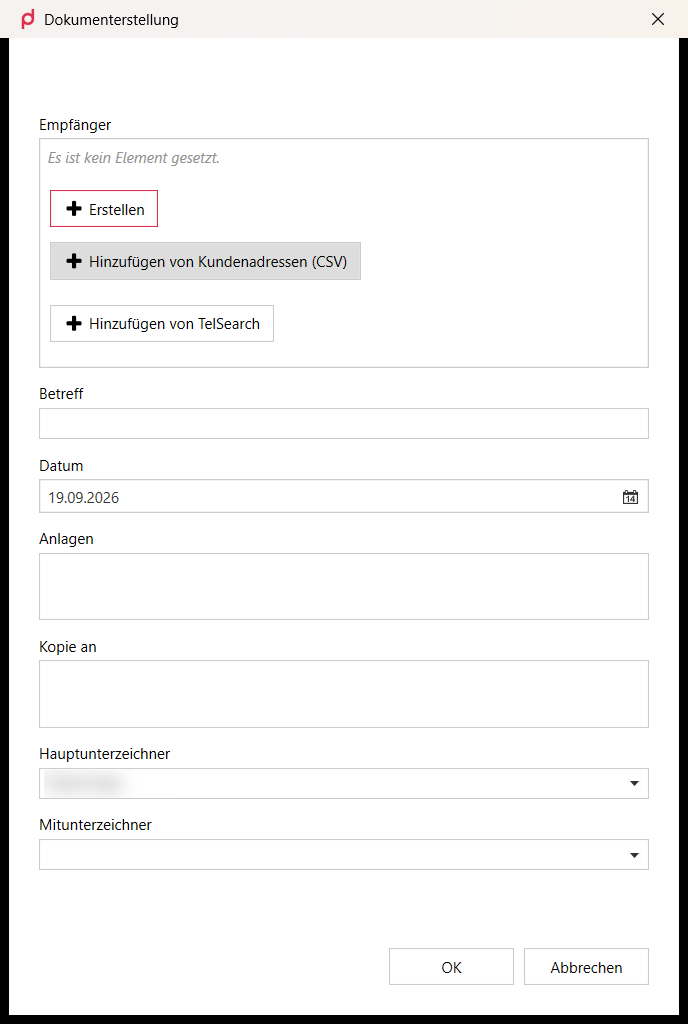
When creating a document, the properties dialog asks for the template's fields. At the top Design colours if the organisational unit provides several designs. In the Recipient section the choice between Create (manual) and Add from [data interface]. The Tab key jumps from field to field, OK creates the document.