Export and import
The Export / Import area transfers content as a package (.pdpx) between datasources, for example from a test to the production environment. A package can contain templates, snippets, configurations, translations, tags, document functions, organizational units, field definitions and profile roles. The area is reserved for system administrators.
Packages are stored in a directory on the server that is configured in primedocs.config:
<importExport rootPath="D:\primedocs\ImportExport" retentionDays="14" />
rootPath is absolute or relative to the directory of primedocs.config. If several server instances run, it must be a shared location. Package files are deleted after retentionDays days (default 14), the runs remain in the history.
New installations contain the element with the directory ImportExport next to primedocs.config. An installation updated with Update.ps1 does not receive it automatically, add the element there by hand, see primedocs.config. If it is missing or the directory cannot be written, the Web Admin points this out and export and import are not possible.
The Web Admin imports only .pdpx packages. Packages in the older format (.oopx) are still imported through the DataSourceAdminApp or exported again as .pdpx in the source through the Web Admin. Exporting and importing a whole database is described in Database export and import.
Structure of the area
Export / Import has its own entry in the main navigation between Settings and Analytics. The area consists of five pages:
| Page | Content |
|---|---|
| Overview | Entry points for export and import and the latest runs of this datasource with direction, result and, for imports, the warnings. |
| Export | Select positions and create a package. |
| Import | Check a package from the package store, read the change plan and apply it. |
| Package store | Packages of this datasource, created here or uploaded. |
| History | All runs of this datasource, filterable by imports, exports, and warnings and errors. |
The steps of export and import are shown as a bar at the top. A step that is already released can be clicked directly. A locked step names the reason on hover or focus, for example a missing selection.
Every page has its own address. Bookmarks and shared links therefore open the export, the package store or a running import directly. The pages also appear in the search (Ctrl+K).
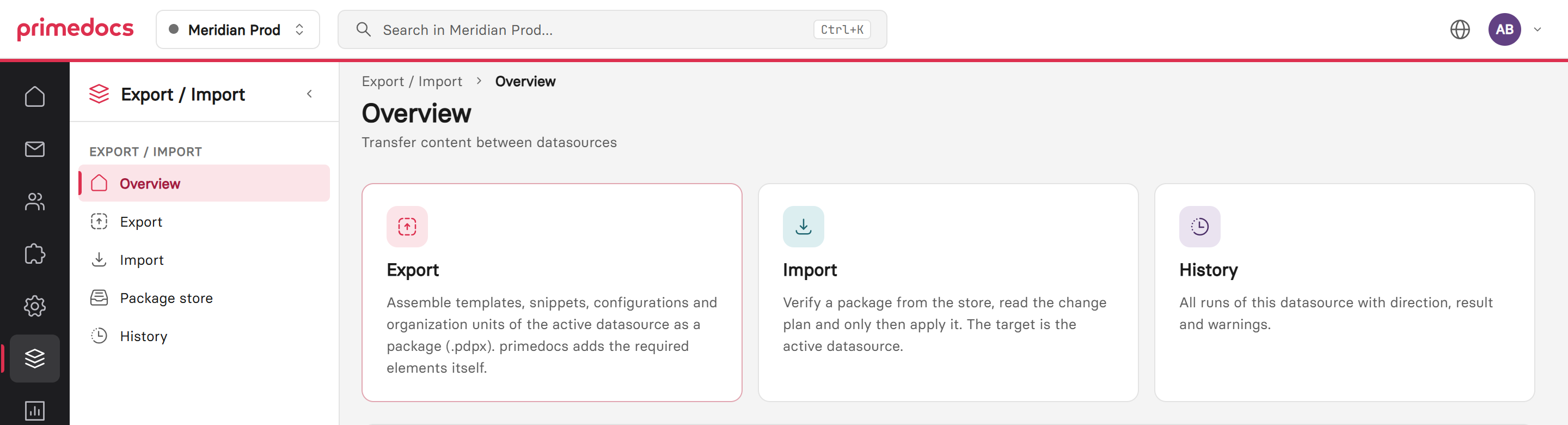
The overview of the area. On the left, the entry in the main navigation with the five pages.
Export
The export leads to a package in the package store in three steps:
-
Select: choose the positions, as a tree, by type or as a table. Two selection aids are available below the search:
- «Only changed since the last export» shows only objects with a change time after the last successful export. Tags, document functions, field definitions, profile roles and template groups carry no timestamp and are missing from the filter.
- «Templates by tags» opens a dialog with every tag that is assigned to at least one template, with the number of templates and in the colour of the tag. «Select templates» adds every template that carries at least one of the chosen tags. The existing selection is kept, a message states the number of templates added.
For selected templates, primedocs adds the required elements itself by default, namely base and sub templates, snippets, tags, configurations, translations and profile roles, also across several levels. «Only the positions selected here» creates a partial package. The required links must then exist in the target.
-
Compose: name the package, check its content and choose «Create package».
-
Store: The package is created and stored in the package store of the datasource. From there it can be downloaded.
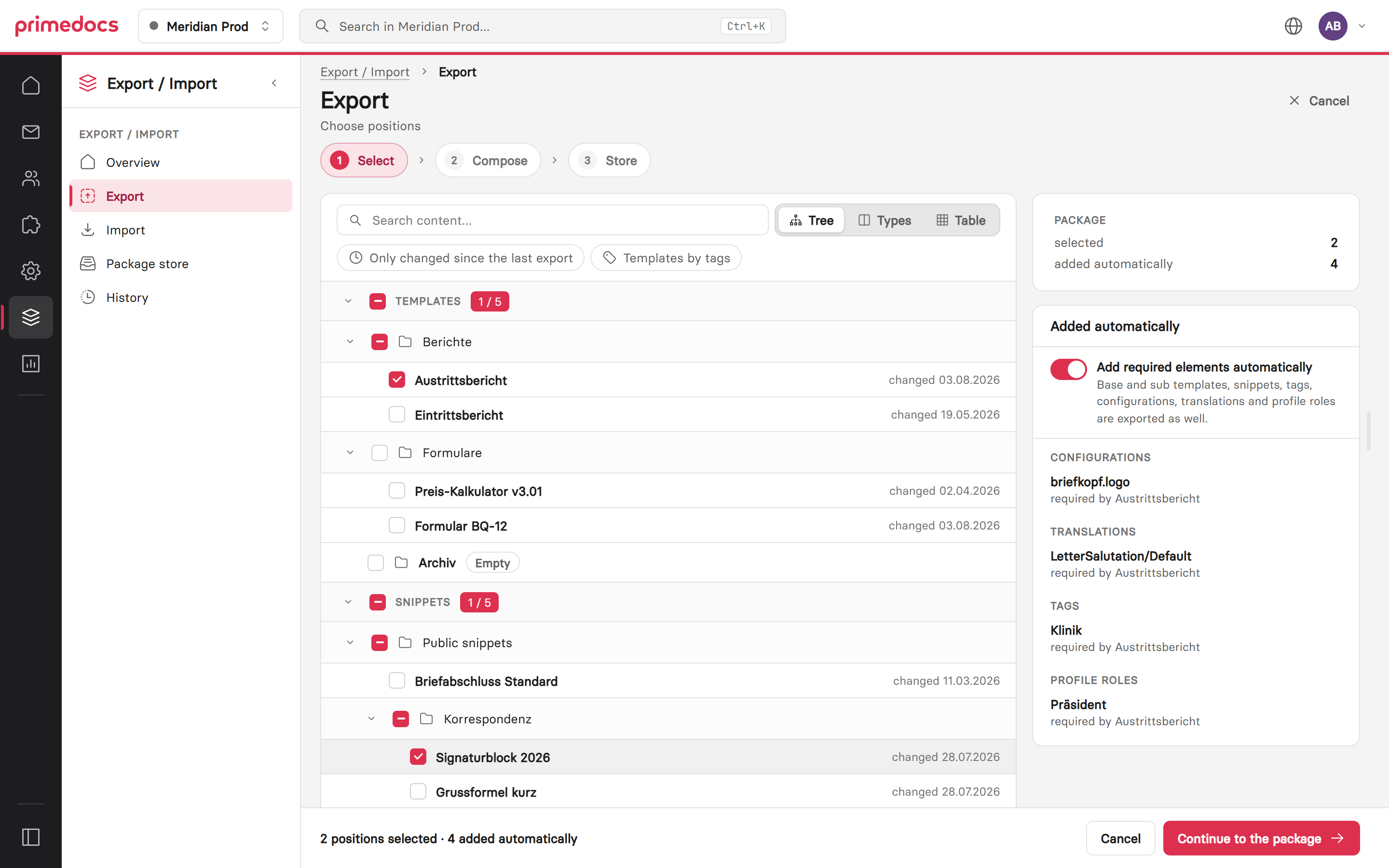
In the first step, the positions are selected. On the right, the elements added automatically, including the profile role a selected template refers to.
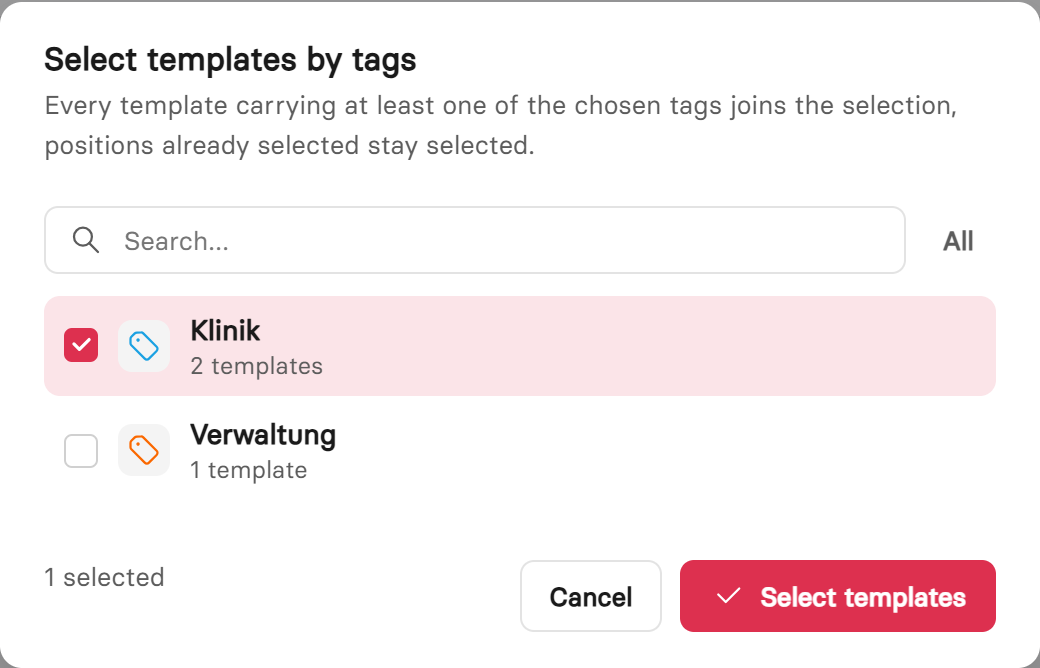
«Templates by tags» adds the templates of the chosen tags. The tags themselves enter the package through the automatic addition.
Package store
The Package store lists the packages of the datasource, created here or uploaded. Packages created here show content and checksum and can be downloaded, the download link is valid for 15 minutes. «Upload package (.pdpx)» adds a package from another datasource. Uploaded packages are imported: to load a package into another datasource, download it and upload it to the package store of the target datasource.
Import
«Import» always starts a guided check. Nothing is applied until the change plan has been confirmed. The target is always the active datasource.
- Check: The package is checked against the target. Shown are the package integrity (checksum), the environment identity (source and target) and the result of the check in the target. Blockers are field definitions that are missing in the target and not included in the package. They do not lock the import, but the affected positions fail when applied. For interface and document languages missing in the target, choose whether their positions are skipped (default) or the run aborts.
- Read plan: The change plan shows every position with its state (new, changed, deleted in source, unchanged) and exactly one action. «Deleted in source» concerns templates that are active in the target but missing from the package of a fully exported template group, because they were deleted or unpublished in the source. The default there is «Keep target», deactivation happens only on request. In addition, decisions apply to the whole run:
- Structure and order: take it from the package (default) or keep the structure of the target.
- Permissions: do not import (default), import all and abort if an account is missing, or import all possible and report gaps.
- Field definitions: use the position from the package (default) or append on conflict.
- Confirm: The final check summarises the plan. If it contains destructive positions, such as deactivating or removing a value, the import stays locked until the name of the target datasource has been entered.
- Result: The database changes are applied completely or not at all. The result shows planned and actual values per object type and remains available in the history.
Every import receives a ChangesetId through which all changes of this run can be found. Whatever the plan does not mention stays unchanged in the target. A check is valid only on the same day. If the target has changed since the check, the run fails and the package must be checked again. A successfully applied import cannot be repeated.
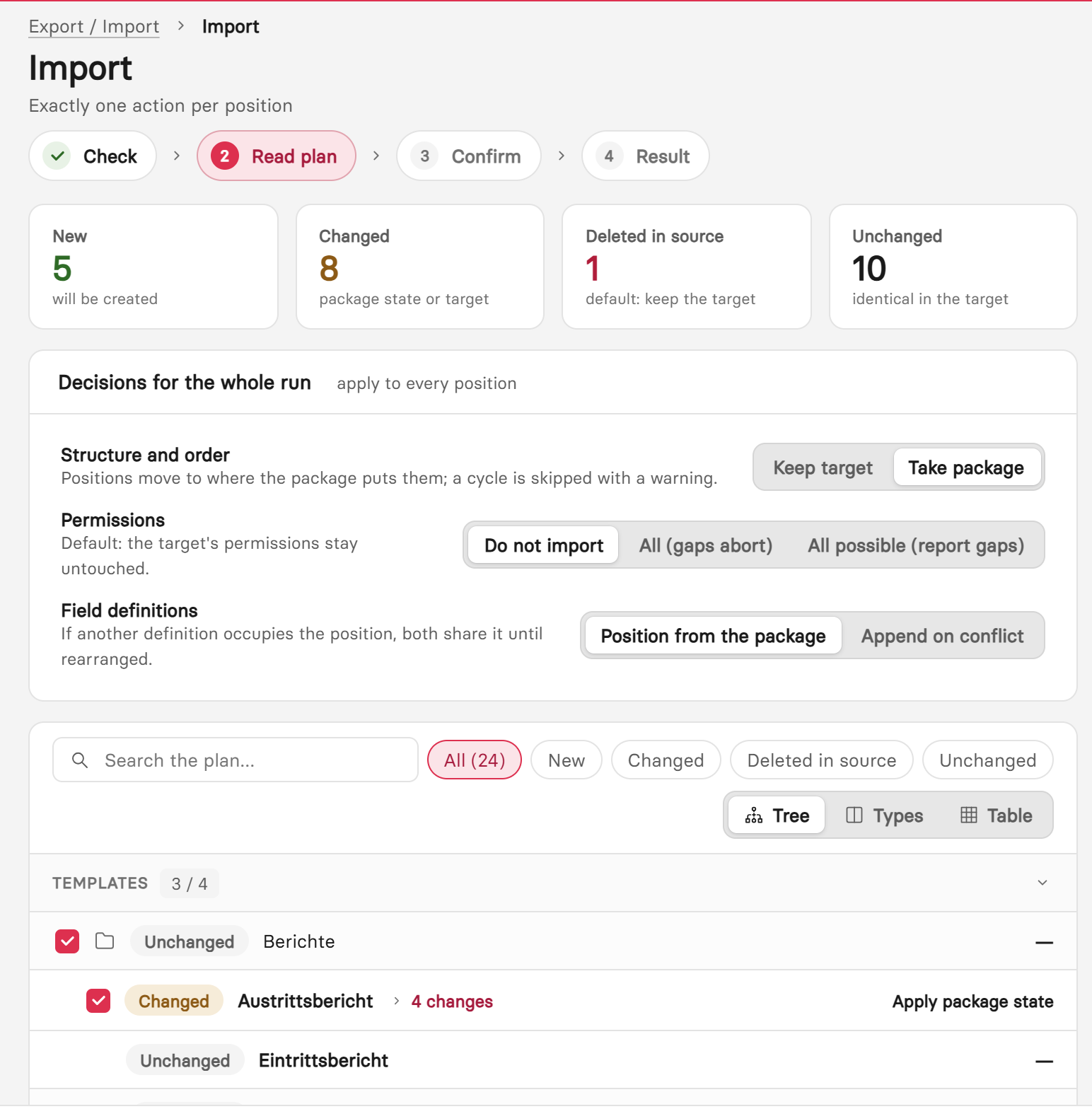
Before it runs, the change plan shows what is created, updated, deactivated or kept.
After the import, clients receive the changes with the next synchronization.
Profile roles in the package
Profile roles are the roles through which templates preselect an additional profile with PreselectByRole. In the export they are selected like any other object type. If a selected template refers to a role, the export adds the role automatically. If a template refers to a role that does not exist in the datasource, a warning appears in the notes of the dependency check.
For each role, the package contains the technical name, the order and the display names per interface language, but no database id. The import matches by technical name, ignoring case:
- A role that already exists in the target keeps its id and with it the assignments to the profiles. Order and display names are taken from the package.
- A role that is missing in the target is created there with its own id.
Profile roles exist only in .pdpx packages, the export of the DataSourceAdminApp (.oopx) never writes them. A hand-edited package with invalid roles is rejected during the check with every violation named, for example an empty technical name or one longer than 100 characters, the characters ", < or >, duplicate names, or several display names for the same language.