Web Admin
The Web Admin is the web interface for the day-to-day administration of a datasource. It covers users, groups, permissions, organizational units and their fields, the datasource settings, the connection to the directory and the user synchronization, package export and import, and usage reports. Templates and snippets are still managed in the DataSourceAdminApp.
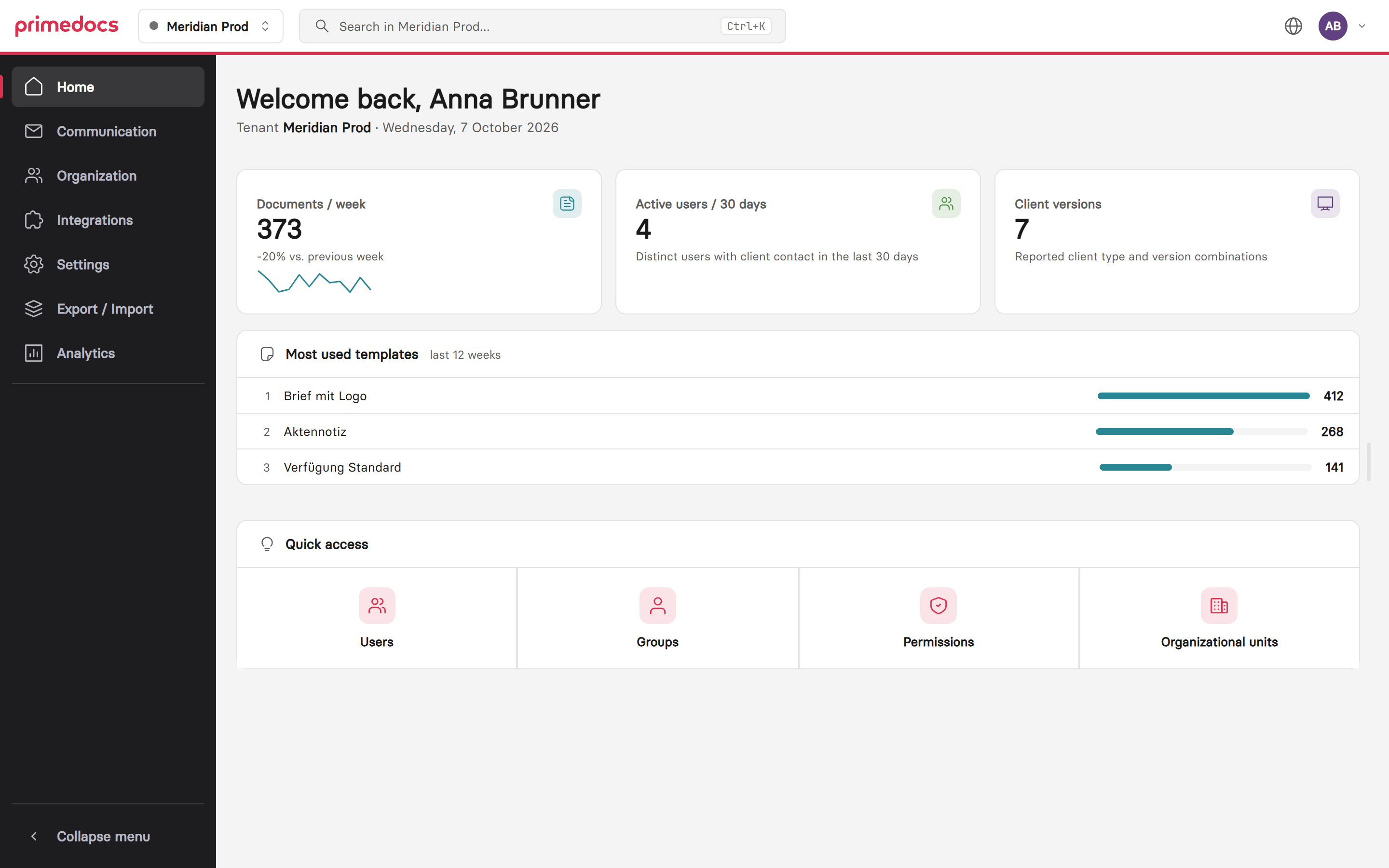
The start page shows key figures for the selected datasource and quick access to the areas released for one's roles. On the left, the main navigation.
Opening and signing in
The Web Admin is part of the primedocs server installation. It is opened at the address stored in primedocs.config for the AdminApp app entry, by default https://<primedocs-host>/admin/. No separate client registration is required: sign-in works as in primedocs Web via the Identity Server and lasts for the current browser session. There is deliberately no persistent sign-in.
In primedocs Web, the «Web Admin» entry in the profile menu leads straight to the Web Admin. The entry is shown to users with the System Administrator, Developer, Organization Administrator or User Administrator role. For the other roles, the Web Admin offers only the start page.
The sign-in screen additionally shows «Support sign-in» when access for external administrators (dataSourceAdminAppAuth) is configured in primedocs.config. Support accounts are not created as users. Their changes are marked in «Created» and «Last changed» with the suffix «(primedocs External Support)».
User interface
| Element | Function |
|---|---|
| Datasource selector (top left) | Switches the datasource. The selected datasource is part of the address, so bookmarks and shared links open the same view. |
Search (Ctrl+K) | Finds users, groups, organizational units, profile roles, user and organization fields as well as pages and opens the hit directly in its detail view, see Search. |
| Main navigation (left) | Areas Home, Communication, Organization, Integrations, Settings, Export / Import and Analytics. Clicking an area opens the first page one's own roles allow. The entries of an area are listed in the panel next to it, see Navigation structure. |
| Language (globe icon) | Interface language German, English, French or Italian. |
| User menu (top right) | Shows the account and roles of the signed-in person. Toggles light/dark mode and row density, signs out. |
Lists can be searched, filtered, sorted and exported as a CSV or Excel file. Column selection, filters and sorting can be saved as a view of one's own. Saved views are stored in the browser. Many areas offer the Split layout (list on the left, detail on the right) or Table.
Forms take effect only after «Save». While unsaved changes exist, the Web Admin asks before leaving the page. If someone else has changed the settings or an app group since loading, «Changed in the meantime» appears before saving: «Reload» discards one's own draft, «Save anyway» overwrites the other change. Actions in lists and dialogs such as assign, add, remove or delete take effect immediately. Saved settings take effect on the server within one minute, clients pick them up with their next synchronization.
Search
The search (Ctrl+K) searches the selected datasource for users, groups, app groups, organizational units on all levels of the hierarchy, profile roles and user and organization fields, plus the pages of the Web Admin. Matches are found by display name, technical ID or SID and by translations, for fields also by their group. Inactive fields can be found as well.
The search starts at two characters and shows at most five hits per object type, exact matches first. Clicking a hit opens the detail or edit view directly. Closing it returns to the list. Only object types and pages permitted by one's own roles are offered: user administrators find users and groups, organization administrators find organizational units and profile roles, and fields are reserved for system administrators.
Navigation structure
The entries of an area are arranged in sections. Only entries permitted by one's own roles are shown.
| Area | Section | Entries |
|---|---|---|
| Home | Personal | Overview |
| Communication | Outlook (Classic) | |
| Organization | People | Users, Groups, Permissions, User fields |
| Organizational units | Organizational units, Organization fields | |
| Profiles | Sharing, Roles, Organization validation | |
| Integrations | Interfaces | Connectors, primedocs AI |
| User data | Identity provider, User synchronization, Directory switch | |
| Settings | System | General, Languages, Security & compliance, Synchronization, Office ribbon |
| Export / Import | Export / Import | Overview, Export, Import, Package store, History |
| Analytics | Analytics | Version overview, Usage statistics |
Roles and visible areas
Which areas a person sees follows from their roles in the selected datasource. The mapping is fixed:
| Role | Visible areas |
|---|---|
| System Administrator | all areas |
| Developer | Home, Outlook (Classic), Profile sharing, Profile organization validation, Integrations without directory switch, Settings, Analytics |
| Organization Administrator | Home, Organizational Units, Profile roles |
| User Administrator | Home, Users, Groups |
| Template, Campaign and Snippet Administrator, User | Home only |
Several roles add up. The server additionally checks the roles on every request, so a hidden page cannot be edited through a direct link either. Permissions, User fields, Organization fields, Directory switch and Export / Import are reserved for system administrators. If one's own roles release no administration area, the start page shows «No areas released».
Areas
| Area | Content |
|---|---|
| Users | Onboard and edit users, fields, profiles and profile sharing |
| Groups and permissions | Directory groups, static and dynamic primedocs groups, role assignments |
| Organizational units | Hierarchy, field values, colour and font themes, permissions |
| User and organization fields | Field definitions of users and organizational units, layout in the form |
| Profiles | Profile sharing, profile roles and profile organization validation |
| Integrations | Identity provider and display name, User synchronization, Directory switch, Connectors, primedocs AI |
| Settings | General, Languages, Security & compliance, Synchronization, Office ribbon, Outlook (Classic) |
| Export and import | Transfer packages between datasources: Export, Import, Package store and History |
| Reports | Key figures, Version Overview and Usage statistics |
Distinction from the DataSourceAdminApp
The DataSourceAdminApp remains responsible for all tasks the Web Admin does not yet cover:
- Templates, snippets, tags and document functions
- Global configurations and global translations
- Database export and import (Smuggler) and the import of older
.oopxpackages - Datasource management (initialising the database, migrations), logs, jobs and the HealthMonitor
Settings available in both interfaces use the same datasource configuration. A change in the Web Admin is visible in the DataSourceAdminApp and vice versa.