Opening the Web Admin and the Dashboard
Applies to: OnPrem customers, primedocs Desktop, primedocs Web, OneOffixx
Concerns: Administrators
A datasource is administered through two web interfaces:
- The Web Admin is the interface for day-to-day administration: users, groups, roles, organizational units and fields, the datasource settings, the connection to the directory and the user synchronization, package export and import, and usage reports.
- The Dashboard (DataSourceAdminApp) remains responsible for the tasks the Web Admin does not yet cover, for example deleted templates, snippets, tags, document functions, global configurations and the datasource itself.
Settings available in both interfaces share the same datasource configuration. The exact split is described in Distinction from the DataSourceAdminApp.
Opening the Web Admin
Open the Web Admin in the browser at https://<primedocs-host>/admin/. In primedocs Web, the «Web Admin» entry in the profile menu also leads there. Sign-in works as in primedocs Web. Which areas are visible depends on the roles in the selected datasource. Details under Opening and signing in.
Opening the Dashboard
The Dashboard is located at the address of the application server with the suffix datasourceadminapp. The address can be determined from the primedocs Client:
- Open your primedocs Client
- Switch to the "primedocs" tab
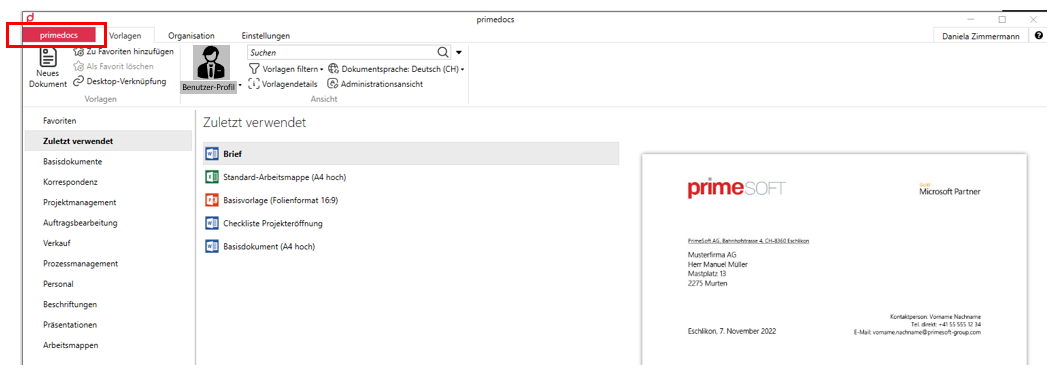
- Click Help.
- On the right-hand side you now find the URL that points to your application server, which the client connects to. Copy the address up to before "service", e.g. "https://primesoft.primedocs.io/"
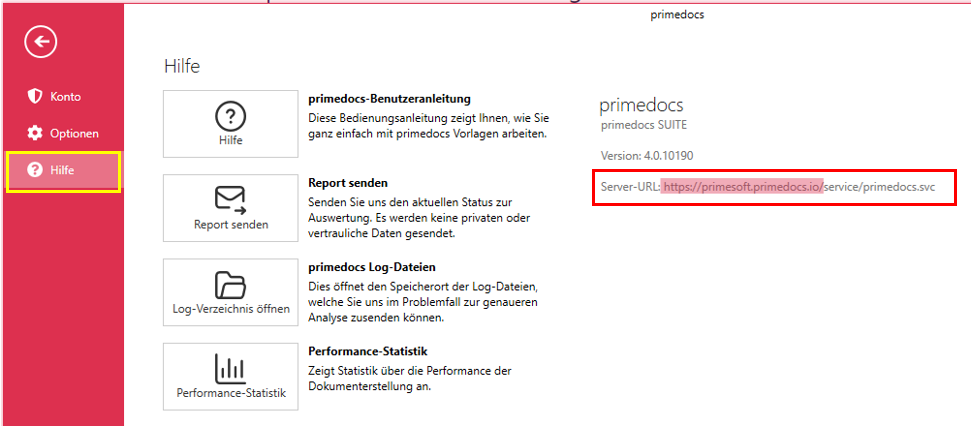
- Paste the URL into the address bar of your browser and add the word "datasourceadminapp", e.g. "https://primesoft.primedocs.io/datasourceadminapp"
Only users who have been authorised in the corresponding file located on the application server have access to this website. If you do not have access but require it, please contact your internal administrator.
TIP
Save the website as a bookmark in your browser.
- Depending on what you want to do, you now reach the corresponding dashboard by clicking the desired database:
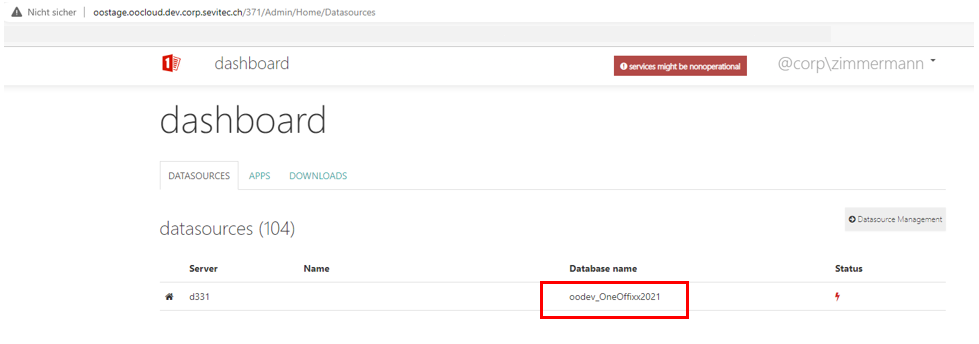
Areas in the Dashboard
The Dashboard is organised from left to right into the following areas. For several areas, the Web Admin offers a newer interface that should be used for day-to-day administration:
| Area | Content | In the Web Admin |
|---|---|---|
| Summary | Statistics, capacity (Capacity) and the connection string of the Datasource. | — |
| Settings | Basic settings such as the synchronisation interval (SynchInterval) and the language settings. Usually set during the initial setup. | Settings |
| Security | Management of user permissions (Users), the targeted AD groups (Windows Groups) and the primedocs Groups. See Roles and Groups. | Groups and permissions |
| Document Functions | Here, individual document functions can be deactivated if needed. Rarely required. | — |
| Templates | List of all templates and template categories. Most important function: restoring deleted templates. See Deleted templates. | — |
| Snippets | List of all shared Snippets (personal Snippets do not appear here). Snippet Usage lists the Snippets that are automatically embedded in templates. | — |
| Fields | Definition of the profile fields in the User and Organisation areas: create, delete, rename fields. Also shows which user field is linked to which AD field. | User and organization fields |
| Tags | Definition of colour markings for templates, which appear in the primedocs app to the right of the template name (e.g. for CMS-linked or legally special templates). | — |
| Config | Management of the global configurations (key-value pairs) and global translations at the Datasource level. Used primarily during the initial setup. | — |
| Stats | Statistics on the use of primedocs. Helpful for identifying training needs or for deliberately expanding the range of templates. | Analytics |
Via the gear icon at the top right, you reach the import/export functions. Note the difference between Database Export/Import and Package Export/Import. Packages in .pdpx format are created and imported in the Web Admin under Export / Import. The Dashboard keeps the database export and import as well as the import of older .oopx packages.
Managing deleted templates
In the Templates area, deleted templates are highlighted in yellow and can be restored:
- Click the green Edit button on the right.
- Select Undelete & set active.
Permanent deletion is irreversible. The options Hard delete: Remove from datasource completely, Remove 'deleted' Templates (in the main view) and Delete [category name] (when a category is expanded) remove templates completely and irreversibly from the Datasource.
When a template is deleted, already generated documents lose the primedocs functions, and third-party systems can no longer access the template.