Languages of a template
Every template defines the document languages in which it is offered to users. The template file and the preview image exist either once for all languages (language-independent) or once per language. This page describes how the two work together, what the warning icon in the languages dropdown means and how a template is switched from language-specific files to a single file.
Which means are available for multilingual documents (a file per language, snippets, global translations) is compared under Multilingual solutions.
Defining the document languages
In the template editor, the Languages dropdown on the Properties tab defines the document languages in which the template can be selected. The document languages of the datasource are offered. In a deselected language the template does not appear, not even through Connect.
Language-independent and language-specific files
The Files tab lists the template file and the preview image with their language. Language-independent means the file applies to all languages of the template. In addition, a separate template file or preview image can be stored for individual languages. The language is set on import: the Import template file menu offers Language-independent and the document languages of the template. Preview images are created from the test document through the «Preview» group, once for all languages or for a chosen language.
When a document is created, the file of the selected document language applies. If there is no file of its own for that language, primedocs uses the language-independent one. A template therefore only needs a file of its own for the languages whose structure differs.
As soon as a template contains at least one language-specific template file, the template editor shows the note «This template has one or more specific language documents» above the tabs. The question mark next to it explains the background: several template files mean maintaining each of them, and switching the language of an existing document is only possible to a limited extent. The recommendation is a language-independent template file whose texts are translated into the document language through fields and global translations.
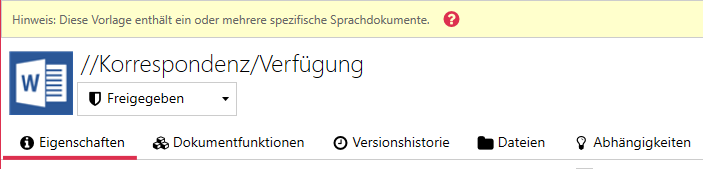
In this case the Editor button becomes a menu: it offers Language-independent and every language with a file of its own, so that the desired file is opened for editing.
Warning icon in the languages dropdown
In the Languages dropdown, a language carries a red triangle as soon as a template file or preview image of its own is stored for it. The tooltip reads «Warning: Removing this language will delete the associated files».
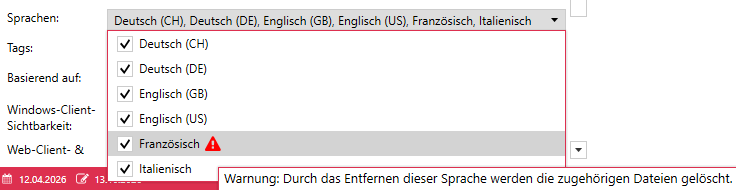
The icon is not an error. It only shows that files stand behind this language and warns against deselecting it: if the checkmark is removed and the template is saved, primedocs deletes the template file and the preview image of that language. Languages without a file of their own carry no icon and can be deselected without loss. As long as the language-specific file exists, the icon stays visible. It cannot be hidden.
Switching to one file for all languages
To make a template use only the language-independent file from now on:
- On the Files tab, select the language-specific template file and save it with Export. This keeps the previous state.
- Remove the language-specific file on the Files tab with Delete, or deselect the language in the Languages dropdown, then save the template. Deselecting the language deletes the template file and the preview image of that language.
- If the language was deselected, select it again and save. From now on the language-independent file also applies to this language, and the warning icon disappears.
The language-independent file must cover all contents of the removed language, for example through global translations or snippets per language. Test the template once in every language before switching.