Color Themes
Color themes define the CI/CD color palette that is made available to users in Microsoft Office via the primedocs ribbon. They are configured per organizational unit and inherited by all child OUs.
If multiple color themes are defined, users choose the theme in the Color theme field of the Properties dialog, which the button of the same name in the primedocs ribbon opens (e.g. to toggle between a standard and a reduced color version).
Configuration
Color themes are stored as XML on the organizational unit. Under <ColorThemes>, one or more <ColorTheme> elements can be defined. They can be edited in two places:
- Web Admin (recommended): Under Organization › Organizational units, select the unit and open the Color theme tab. The color themes can be edited there visually or as XML, see Organizational units in the Web Admin.
- primedocs Desktop: Under Organization › Organization units, select the unit and click Color themes in the ribbon. The dialog shows the XML of the color theme.
The Web Admin is the recommended way. Its visual editor offers the color lists as separate sections, suggests existing translation keys and shows whether a key is translated.
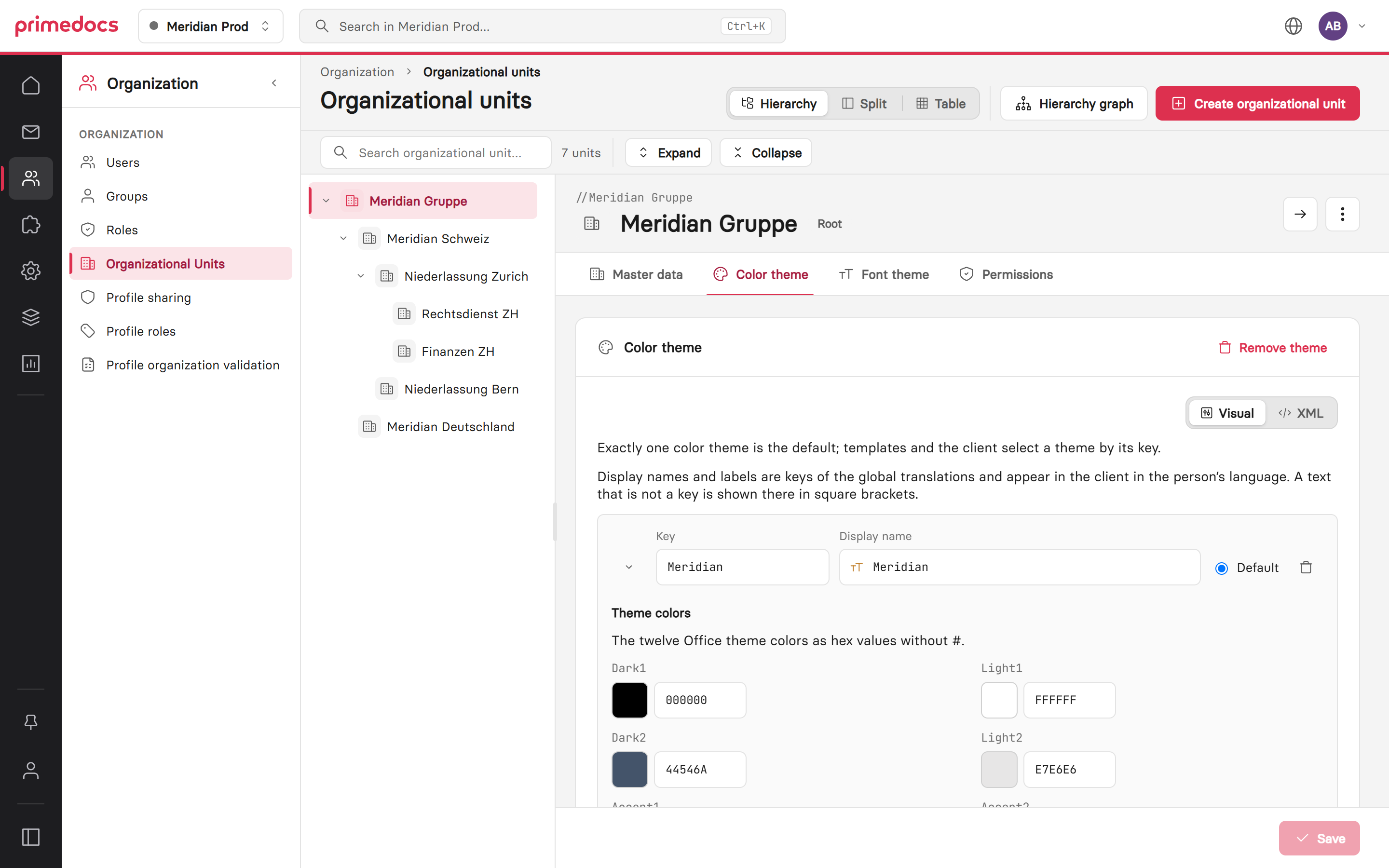
Web Admin: select the organizational unit and open the Color theme tab. Switch between Visual and XML at the top right.
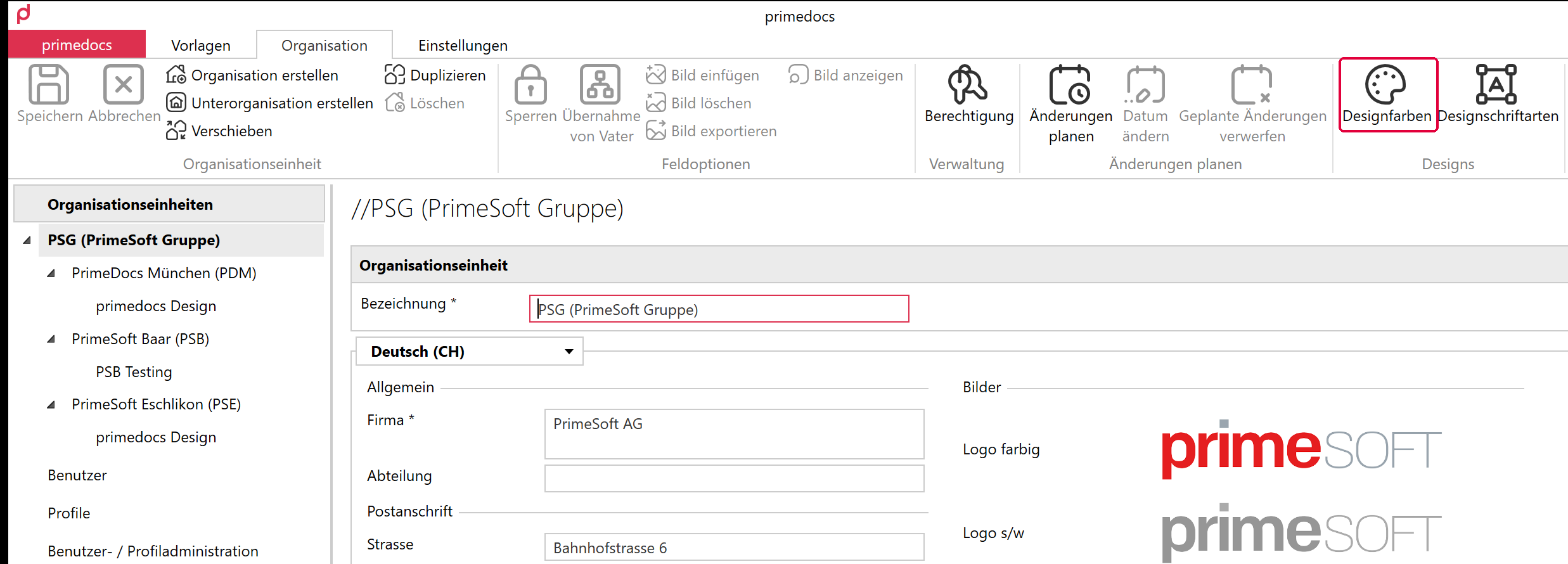
primedocs Desktop (German UI): select the organizational unit on the left, then click Color themes («Designfarben») in the Organization ribbon.
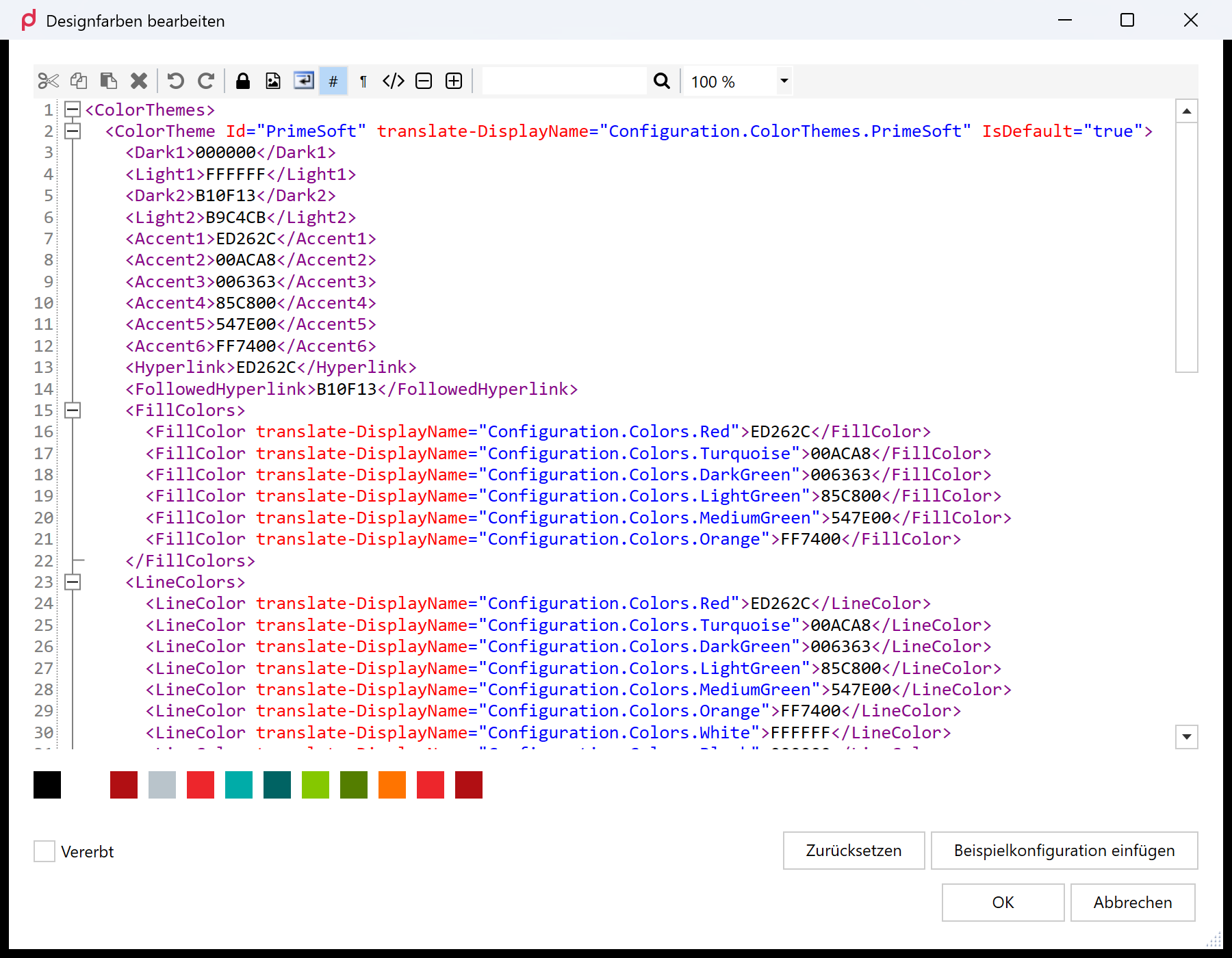
The color themes dialog shows the XML with a preview of the theme colors. Inherited («Vererbt») uses the color theme of the parent organizational unit.
Example
<ColorThemes>
  <ColorTheme Id="Standard" translate-DisplayName="ColorThemes.Standard" IsDefault="true">
    <Dark1>000000</Dark1>
    <Light1>FFFFFF</Light1>
    <Dark2>44546A</Dark2>
    <Light2>E7E6E6</Light2>
    <Accent1>4472C4</Accent1>
    <Accent2>ED7D31</Accent2>
    <Accent3>A5A5A5</Accent3>
    <Accent4>FFC000</Accent4>
    <Accent5>5B9BD5</Accent5>
    <Accent6>70AD47</Accent6>
    <Hyperlink>0563C1</Hyperlink>
    <FollowedHyperlink>954F72</FollowedHyperlink>
    <FillColors>
      <FillColor translate-DisplayName="Colors.DeepBlue">183F5A</FillColor>
      <FillColor translate-DisplayName="Colors.VividBlue">007AC0</FillColor>
      <FillColor translate-DisplayName="Colors.LightGrey">E7E6E6</FillColor>
    </FillColors>
    <LineColors>
      <LineColor translate-DisplayName="Colors.DeepBlue">183F5A</LineColor>
      <LineColor translate-DisplayName="Colors.MediumGrey">A6A6A6</LineColor>
    </LineColors>
    <TextColors>
      <TextColor translate-DisplayName="Colors.Black">000000</TextColor>
      <TextColor translate-DisplayName="Colors.DeepBlue">183F5A</TextColor>
      <TextColor translate-DisplayName="Colors.White">FFFFFF</TextColor>
    </TextColors>
    <Chart>
      <ChartColors>
        <ChartColor translate-DisplayName="Colors.DeepBlue" Id="1">183F5A</ChartColor>
        <ChartColor translate-DisplayName="Colors.VividBlue" Id="2">007AC0</ChartColor>
        <ChartColor translate-DisplayName="Colors.DeepTeal" Id="3">006667</ChartColor>
        <ChartColor translate-DisplayName="Colors.VividTeal" Id="4">00AFBB</ChartColor>
      </ChartColors>
      <GridLinesColor translate-DisplayName="Colors.MediumGrey">A6A6A6</GridLinesColor>
      <GridAxisColor translate-DisplayName="Colors.Black">000000</GridAxisColor>
      <DataLabelColor translate-DisplayName="Colors.Black">000000</DataLabelColor>
      <TextColor translate-DisplayName="Colors.Black">000000</TextColor>
      <Font Name="Calibri Light" Size="14" Bold="false" Italic="false" />
      <TitleFont Name="Calibri Light" Size="14" Bold="true" Italic="false" />
      <GridLinesFormat DashStyle="msoLineSolid" Width="0.75" ColorHex="000000" />
    </Chart>
  </ColorTheme>
  <ColorTheme Id="Reduced" translate-DisplayName="ColorThemes.Reduced">
    <Dark1>000000</Dark1>
    <Light1>FFFFFF</Light1>
    <Dark2>44546A</Dark2>
    <Light2>E7E6E6</Light2>
    <Accent1>1F497D</Accent1>
    <Accent2>4F81BD</Accent2>
    <Accent3>9BBB59</Accent3>
    <Accent4>8064A2</Accent4>
    <Accent5>4BACC6</Accent5>
    <Accent6>F79646</Accent6>
    <Hyperlink>0563C1</Hyperlink>
    <FollowedHyperlink>954F72</FollowedHyperlink>
  </ColorTheme>
</ColorThemes>
Attributes
<ColorTheme>
| Attribute | Description |
|---|---|
Id | Unique identifier for this color theme. Two themes with the same identifier are rejected on save. |
translate-DisplayName | Translation key for the theme name shown to users. There is no attribute for a fixed text, see Display names. |
IsDefault | If true, this theme is preselected. Exactly one theme must be marked as default, otherwise the configuration is rejected on save. |
Color elements
All color values are 6-digit hex codes without a leading #, with letters in upper case (A4F02D, not a4f02d). This also applies to the color lists and the color elements in <Chart>. XML with any other notation is rejected on save, while the visual editor of the Web Admin converts input to this form itself.
| Element | Description |
|---|---|
Dark1 | Primary dark color (typically black). |
Light1 | Primary light color (typically white). |
Dark2 | Secondary dark color. |
Light2 | Secondary light color. |
Accent1–Accent6 | The six Office accent colors. |
Hyperlink | Color for hyperlinks. |
FollowedHyperlink | Color for visited hyperlinks. |
Fill, line and text colors (optional)
The three lists <FillColors>, <LineColors> and <TextColors> populate the menus of the same name in the Format group of the primedocs ribbon in Word, Excel and PowerPoint. Each entry is a <FillColor>, <LineColor> or <TextColor> with the hex value as its content and the translation key of its label in the translate-DisplayName attribute. Both are mandatory, a color without a value or without a translate-DisplayName attribute is rejected on save. Saving does not check whether the key is translated, see Display names.
<FillColors>
  <FillColor translate-DisplayName="Colors.DeepBlue">183F5A</FillColor>
  <FillColor translate-DisplayName="Colors.VividBlue">007AC0</FillColor>
</FillColors>
The order in the XML is the order in the menu.
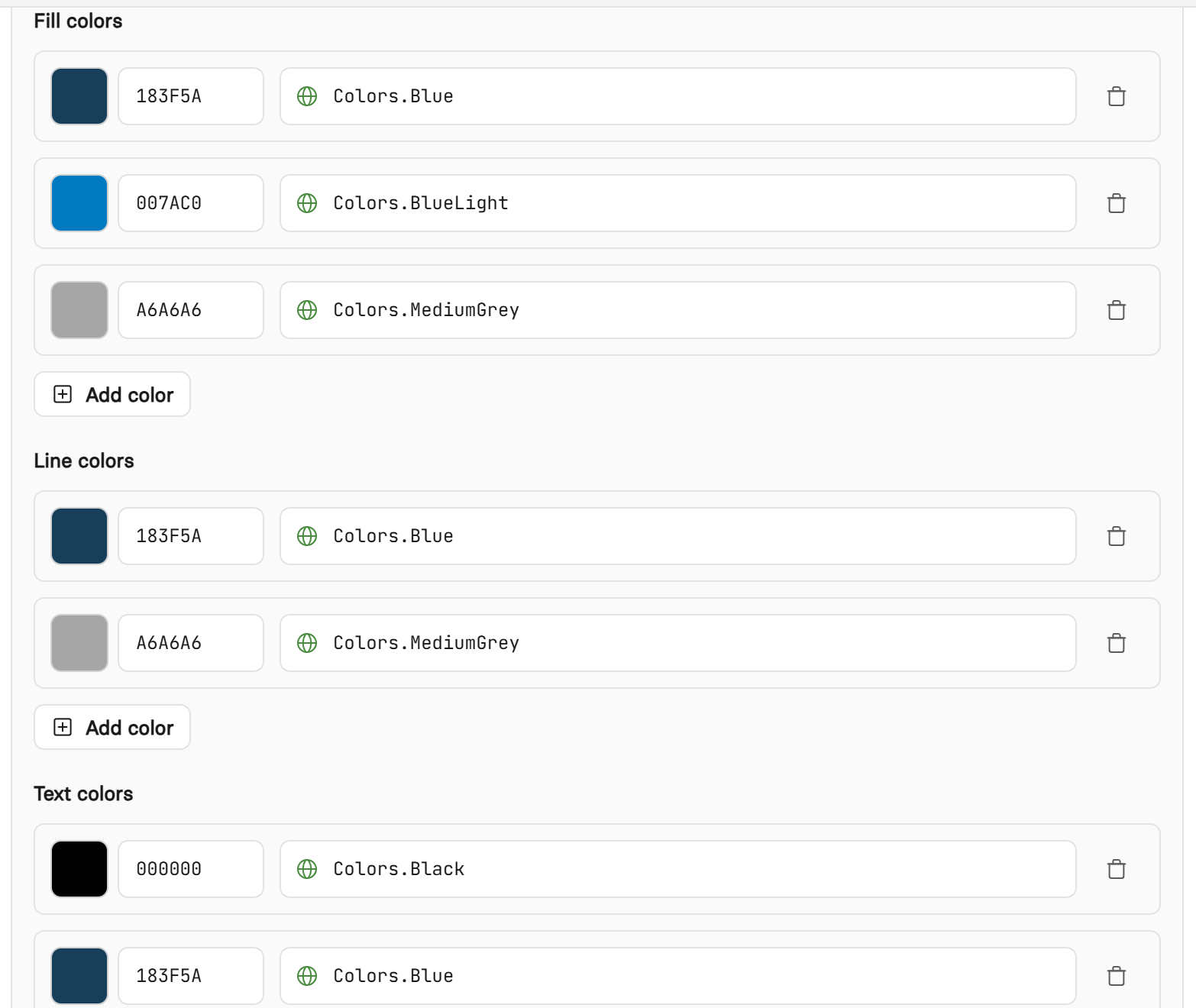
In the visual editor of the Web Admin, the three lists appear below the theme colors. A green globe icon marks an existing translation key, an orange «T» a text without a key. The tooltip shows the translation.
When the buttons are available. A button can only be selected if the list in effect for the application contains at least one color, after the application-specific overrides are applied. If <FillColors> is missing and no application block sets a list of its own, Fill colour stays greyed out in all three applications. The same applies to the other two lists. Independently of this, all three buttons are disabled while the document or presentation is protected. In Excel, this applies to a workbook that is read-only or marked as final, while sheet protection alone does not disable them. In PowerPoint, the buttons are only available for selected shapes and selected text in normal slide editing, not in the outline view, for example. If only a chart is selected there, Line colour and Text colour stay disabled, because chart colors are controlled through the Charts group.
<TextColors> at <ColorTheme> level is the palette behind the Text colour button. It is not the same as <TextColor> inside <Chart>, which is a single color for text in charts.
Application-specific overrides (optional)
<WordSpecific>, <ExcelSpecific> and <PowerPointSpecific> override individual settings of the color theme for exactly one Office application. All twelve color elements, the three lists <FillColors>, <LineColors> and <TextColors>, and the <Chart> block can be overridden.
<PowerPointSpecific>
  <Dark1>363232</Dark1>
  <Light1>DBDBDB</Light1>
</PowerPointSpecific>
Anything missing from the block keeps the value of the color theme. A list is replaced as a whole, not extended. If <WordSpecific> contains a <FillColors> list with two colors, Word offers exactly these two, regardless of how many fill colors the color theme defines. An empty list such as <FillColors /> removes the colors for that application, and the button is then disabled there.
Inside <Chart>, the direct child elements are taken over individually, while composite settings such as <Font> or <GridLinesFormat> are each replaced as a whole. A <Chart> in an application block requires a complete <Chart> in the color theme itself and should contain its own <ChartColors> list. Without this list, the chart palette of the application stays empty and the list of the color theme is not used.
In the visual editor of the Web Admin, only the twelve color elements of these blocks can be edited. Palettes and chart settings they contain are preserved and are edited in the XML editor.
<Chart> (optional)
Defines the color palette and typography used in Office charts.
| Element | Description |
|---|---|
<ChartColors> | List of <ChartColor> elements, each with a unique numeric Id, a translate-DisplayName and a hex color. The color sequence of a chart template refers to these IDs, undefined IDs are skipped. |
<GridLinesColor> | Color of chart grid lines. |
<GridAxisColor> | Color of chart axes. |
<DataLabelColor> | Color of data labels. |
<TextColor> | Default text color for chart elements. |
<Font> | Default chart font (Name, Size, Bold, Italic). |
<TitleFont> | Chart title font. |
<GridLinesFormat> | Grid line style (DashStyle, Width). The grid line color comes from <GridLinesColor>, the chart functions do not evaluate the ColorHex attribute. |
Display Names
The name of a color theme and the label of every single color come from the translate-DisplayName attribute. Its value is a key of the Global Translations of the data source, not the text to be displayed.
<ColorTheme Id="Standard" translate-DisplayName="ColorThemes.Standard" IsDefault="true">
The key is looked up first in the user interface language, then in the default language of the data source, each time also in the parent language (for example German for German (Switzerland)). Without a match, the key appears in square brackets, for example [Colors.DeepBlue]: for colors in the ribbon menus, for theme names in the Color theme field of the Properties dialog. Before saving a color theme, therefore check that all keys it uses exist in the Global Translations. This applies in particular to a theme copied from another data source, and to the template that Insert example configuration inserts in the Color themes dialog of primedocs Desktop. Its keys (ColorThemes.Red, Colors.Green and so on) are examples and must be created or replaced with existing keys.
Inheritance
If no color theme is configured on an OU, the configuration from the nearest parent OU that has one is used. To override the parent, define a <ColorThemes> element on the child OU. In the Web Admin, this is done with «Override».