Dispatch Manager (Successor Documents)
This document function (the Dispatch Manager) activates dispatch handling for successor documents derived from a primary document, for example address labels, enclosures, or cover letters. Successor documents are produced per object (e.g. per recipient) and processed through defined targets and actions.
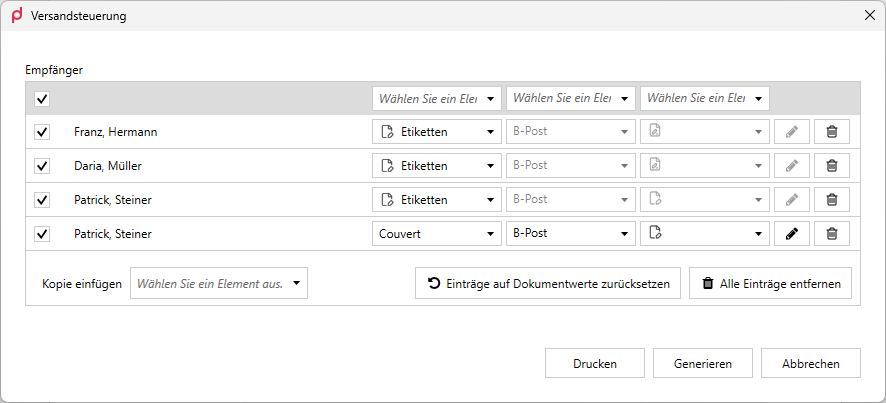
The Dispatch Manager dialog: one target per recipient (e.g. labels), processed via the actions at the bottom.
How it works
Distribution iterates over the objects the user has selected in an ObjectCollection. Which collection is distributed is determined by the SourceObjectCollectionId attribute. It can come from Forms, Fields or Data. An optional Filter removes individual entries before the dialog is built. For each selected object, the Code of the associated Target is evaluated. This code returns the field mappings (Forms and data field values) for that successor document, i.e. the values used to populate the target template. A successor document is then generated per object. The results of a target are merged into a PDF.
The process is triggered via the actions (Actions): GenerateAction shows the Generate button in the Dispatch Manager dialog (WPF), and PrintAction shows the Print button.
When the dialog is confirmed, the assignment of targets to recipients is stored in the document itself (custom XML part), even if nothing is generated or printed. The document can be closed and reopened, and the selection is preserved. Cancelling the dialog stores nothing.
When the dialog is opened again, the stored list is restored and replaces the values of the ObjectCollection. Only when no stored data exists is the list built from the ObjectCollection. A target that no longer exists in the configuration is restored as "no target". The recipient selection made last is restored as well, see Dispatch dialog.
The Dispatch Manager is available only in the primedocs Desktop Client together with the Word COM add-in (legacy, Windows). There is no equivalent in the Office Web Add-ins or in primedocs Web. Shipped from version 4.1.10020.0. The Fields and Data sources as well as Summary and Filter follow in a later build.

PrintAction lets you set a printer per target. «Print» opens the printer selection per dispatch document type.
Basic structure
<SuccessorDocumentConfiguration>
  <DistributeByObject SourceObjectCollectionId="Forms.Recipients">
    <Targets>
      <Target Name="Label" Label="Address label" Icon="Tag">
        <TagFilter>
          <Tag>label</Tag>
        </TagFilter>
        <Code>
          function main() { return $("RecipientId"); }
        </Code>
      </Target>
    </Targets>
    <Actions>
      <PrintAction Enabled="true">
        <Default TargetName="Label" Printer="LabelPrinter" Tray="Tray2" />
      </PrintAction>
      <GenerateAction Enabled="true" />
    </Actions>
    <Summary>
      <Field Id="Name" />
      <Field Id="DispatchMethod" QuickAccess="true" />
    </Summary>
    <Filter>$("DistributeObject.Active") === 'true'</Filter>
  </DistributeByObject>
</SuccessorDocumentConfiguration>
DistributeByObject
Controls the distribution of successor documents per object. The SourceObjectCollectionId attribute determines which ObjectCollection is distributed. The child elements follow in the order Targets (which successor documents), Actions (what happens with them), Summary (how a row is labelled in the dialog) and Filter (which entries appear at all).
Source ObjectCollection (SourceObjectCollectionId)
| Attribute | Required | Description |
|---|---|---|
DistributeByObject/@SourceObjectCollectionId | only with Summary | The ObjectCollection to distribute, written as <Source>.<Id>, e.g. Forms.Recipients. Without the attribute, the first ObjectCollection of the Forms configuration is used. |
The permitted sources are Forms, Fields and Data. The notation rules are:
- The source is matched case-insensitively:
forms.RecipientsandForms.Recipientsare equivalent. - Only the first dot separates source and id. An id that contains dots itself therefore stays intact.
- An id without a source prefix is rejected as a configuration error rather than being read as Forms silently. The same applies to
Forms.and.Recipients. - Only ObjectCollections at the top level (direct elements as well as elements inside a group) can be referenced. A collection nested in an
Objector in another ObjectCollection cannot be addressed, and neither can one that only comes into being in an adaptive input mask. Globally configured collections (GlobalElements,GlobalGroups, global schemas), by contrast, are resolved.
Template validation reports an error when the referenced document function is not active in the template or the collection does not exist there. The message lists the ids that are available. In the Word ribbon, the Dispatch Manager is only offered when at least one target is configured and the referenced collection exists.
The Dispatch Manager does not support a Forms configuration with UseDotsForHierarchy="true": the dispatch dialog aborts with an error. The Fields and Data sources are not affected, even when Forms has the option set in the same template.
As soon as a Summary is configured, SourceObjectCollectionId becomes mandatory, because the field ids of the summary are only meaningful for one specific collection, and the "first in Forms" fallback would silently point at a different schema once the Forms configuration is reordered.
Differences between the sources
Forms describes a user interface, whereas Fields and Data describe data only. This limits the detail view of a row (behind the pencil icon):
| Forms | Fields | Data | |
|---|---|---|---|
| Field label | label, translatable | none, the id is displayed | none, the id is displayed |
| QuickAccess drop-downs | yes | no | no |
| Mandatory field and validation message | yes | no | no |
| Data provider in the row editor | yes | no | no |
Own Summary of the collection | yes | no | no |
The dispatch list itself is not affected: for all three sources it shows the values only, joined by commas. QuickAccess="true" on a Fields or Data source is reported as a configuration error instead of staying without effect.
Targets
Defines the available targets (successor document types).
| Element / Attribute | Required | Description |
|---|---|---|
Target | – | A single target. Multiple targets are allowed. |
Target/@Name | yes | Unique identifier of the target, referenced from the actions via TargetName. |
Target/@Label / @translate-Label | optional | Display name or translation key of the target. |
Target/@Icon | optional | Icon for the user interface. |
Target/TagFilter/Tag | in practice yes | Restricts the target to templates carrying the given tags. Multiple Tag entries are allowed. The schema permits a target without a TagFilter, but such a target is skipped at runtime. |
Target/Code | yes | JavaScript that returns the distribution value per object. |
GlobalTargets/@Key | optional | Reference to a global target definition instead of an inline Target. |
Actions
Defines what happens with the generated successor documents.
| Element / Attribute | Description |
|---|---|
PrintAction/@Enabled | Enables the print action and the Print button in the Dispatch Manager dialog (default: true). |
PrintAction/Default/@TargetName | References the target to print via its Name. |
PrintAction/Default/@Printer / @Tray | Optional printer and paper tray. |
GenerateAction/@Enabled | Enables the generate action and the Generate button in the Dispatch Manager dialog (default: true). |
GlobalActions/@Key | Reference to a global actions definition. |
Targets and actions can be maintained centrally as a global configuration via GlobalTargets / GlobalActions and reused across multiple templates.
Summary
Defines which fields label a row in the dispatch dialog. The presentation in Forms is left untouched. The Summary applies to the dispatch dialog only. Without a Summary the fallback applies: a Forms collection uses its own Summary, a collection from Fields or Data shows every field of its schema.
| Element / Attribute | Required | Description |
|---|---|---|
Summary/Field | at least one | One field of the row. The order of the entries determines the order in the list. |
Summary/Field/@Id | yes | Field id from the schema of the ObjectCollection selected via SourceObjectCollectionId. Only value fields are permitted. Nested Object and ObjectCollection elements cannot be referenced, because a row stays a row. |
Summary/Field/@QuickAccess | optional | true produces a column that is editable directly in the list (default: false). Permitted only for choice fields (Choice) of a Forms source. |
An empty Summary and duplicate field ids are configuration errors. Field ids the schema of the selected collection does not know are reported as well.
Filter
Optional JavaScript predicate deciding which entries of the ObjectCollection reach the dispatch dialog at all. It is evaluated once per entry. The fields of that entry are readable through $("DistributeObject.<FieldId>"), the same way as in the Code of a target during generation. The other fields of the document remain readable through $() as usual. In the template editor, the content of Filter is highlighted as JavaScript and supported by auto-completion, just like a Code element.
<Filter>$("DistributeObject.Active") === 'true'</Filter>
Permitted are either plain expressions or function declarations including a main function (the same two forms as for the Code of a target). A Filter element that is present but empty is a configuration error.
Filtered-out entries are missing only from the dispatch dialog. In the form itself they remain visible unchanged and the Forms data is left untouched.
The filter determines the dialog's initial list. It is used when the dialog opens without stored dispatch data, when resetting via Reset entries to document values, and as the selection for Insert copy. Once dispatch data is stored in the document, the dialog shows that stored list unchanged. An entry that would only be filtered out later (for example because Active was cleared in the form) therefore disappears from the list only after a reset.
If the filter cannot be evaluated, the dialog shows all entries and reports "The configured filter could not be applied. All entries are shown.". The error is written to the log. A faulty filter therefore does not restrict the dispatch, it lifts the restriction.
Dispatch dialog
Recipient selection. When the dialog opens for the first time, every row is ticked. Dispatching to everybody is the normal case, and exceptions are unticked. As soon as dispatch data is stored in the document, the selection made last applies again.
Buttons. Both actions process the selected rows only. While no row is selected, Generate and Print are therefore disabled and the dialog shows the hint "Select at least one entry." to their left.
Required fields. A selected row with an empty required field blocks both actions, also in nested objects and collections of the row. After the first click, the error text appears below the list. It disappears as soon as the row is deselected, deleted or corrected via Edit. Deselected rows do not count, because they are not dispatched. Rows taken from the form are locked in the dialog and, with an empty required field, can only be deselected.
Setting a value for all rows. Above the target column and above every QuickAccess column there is a drop-down that writes the chosen value into all rows. No such header control is created for a choice field configured as ReadOnly. It is a pure "set all" control and does not reflect the state of the rows: after applying, it returns to the empty entry so that the same value can be set again. Rows taken over from the form and locked there are never overwritten.
Output
The Generate button always writes the resulting files to the folder <Downloads>\primedocs. If the folder does not exist, it is created. Once generation has finished, the folder is opened in File Explorer automatically.
- File name:
{TargetName}_{yyyyMMddHHmmss}.pdf. The target name comes fromTarget/@Name, followed by the timestamp of the generation. - Format: always PDF. No other output format (for example DOCX) is available.
- Bundling: one file per target, regardless of the number of recipients. Five recipients for the target "Label" produce a single PDF with five pages.
Location, file name and format are not configurable, because the schema of the document function has no element or attribute for them. For controlled storage in GEVER, SharePoint or on a network share, use output management or Connect. Both act on the generated primary document, however, not on the successor documents of the Dispatch Manager.
The TagFilter of a target must match exactly one Word template in the language of the document. If it matches none or several templates, that target is skipped without any message. The same applies to a target with no TagFilter at all and to a target whose name no longer exists in the configuration. Generation still reports success, but the PDF for that target is simply missing. Choose tags and document languages so that resolution is always unambiguous.
Printing
The Print button opens the printer selection, with one printer and one tray drop-down per selected target. The only configurable settings are PrintAction/@Enabled (default: true) and, per target, a Default entry with @TargetName, @Printer and @Tray.
Everything else is fixed: the number of copies is set to 1. The print job sets no options beyond printer and paper tray. Duplex, paper format and colour follow the printer driver's own defaults and can be controlled neither from the template nor from the dialog.
The printer is resolved in three stages: first the remembered user selection, then PrintAction/Default, and finally the Windows default printer (or the first available printer if none is marked as the default). The configured default therefore applies only until the user has confirmed a selection of their own. From the first user selection onwards it is overridden permanently. The remembered selection is held in the user's Desktop Client settings and cannot be controlled through the organisational unit or the user profile.