Microsoft SharePoint App Installation
Overview
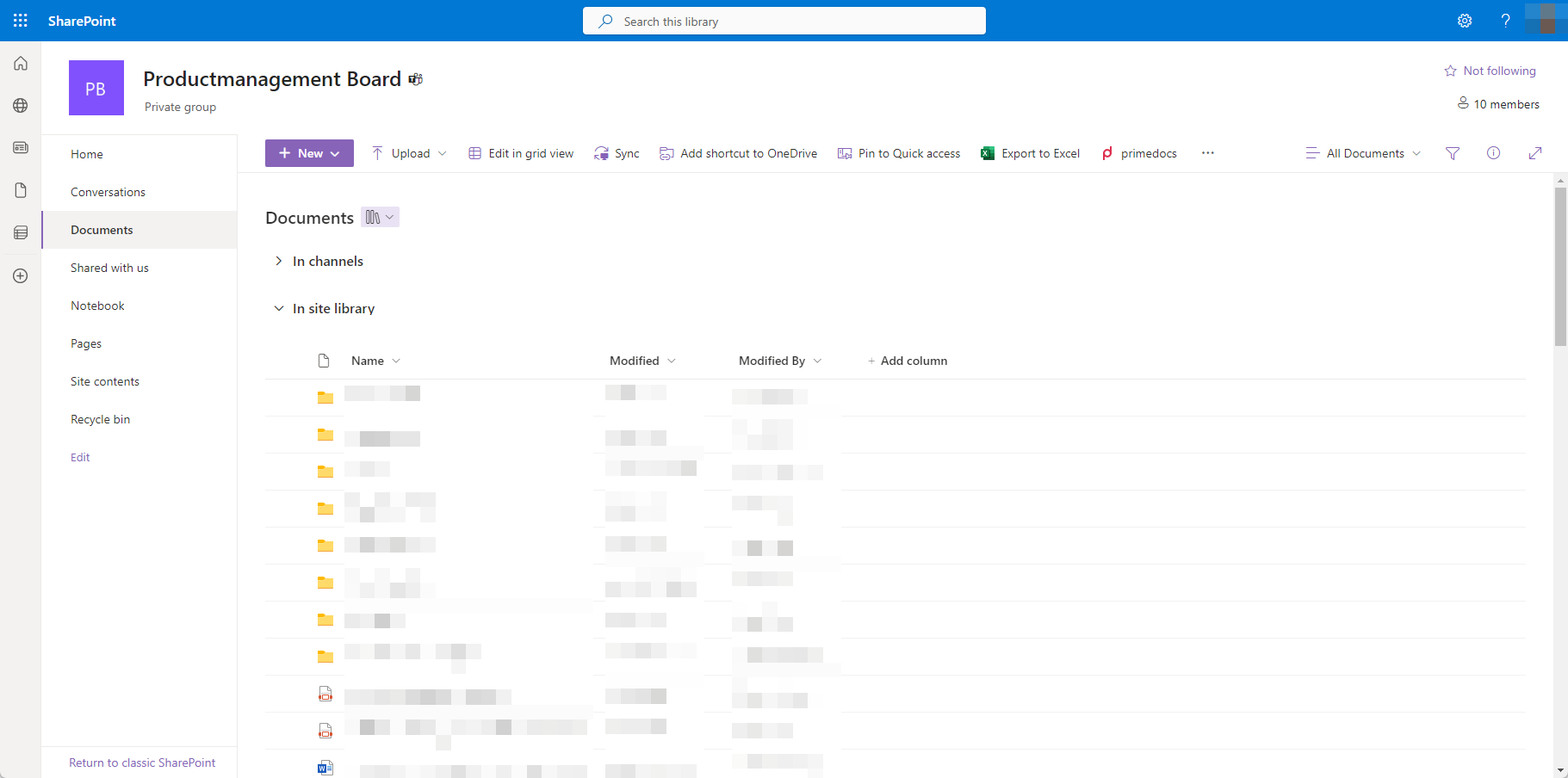
primedocs can be called directly from a SharePoint document library. The primedocs SharePoint app integrates itself into the toolbar:
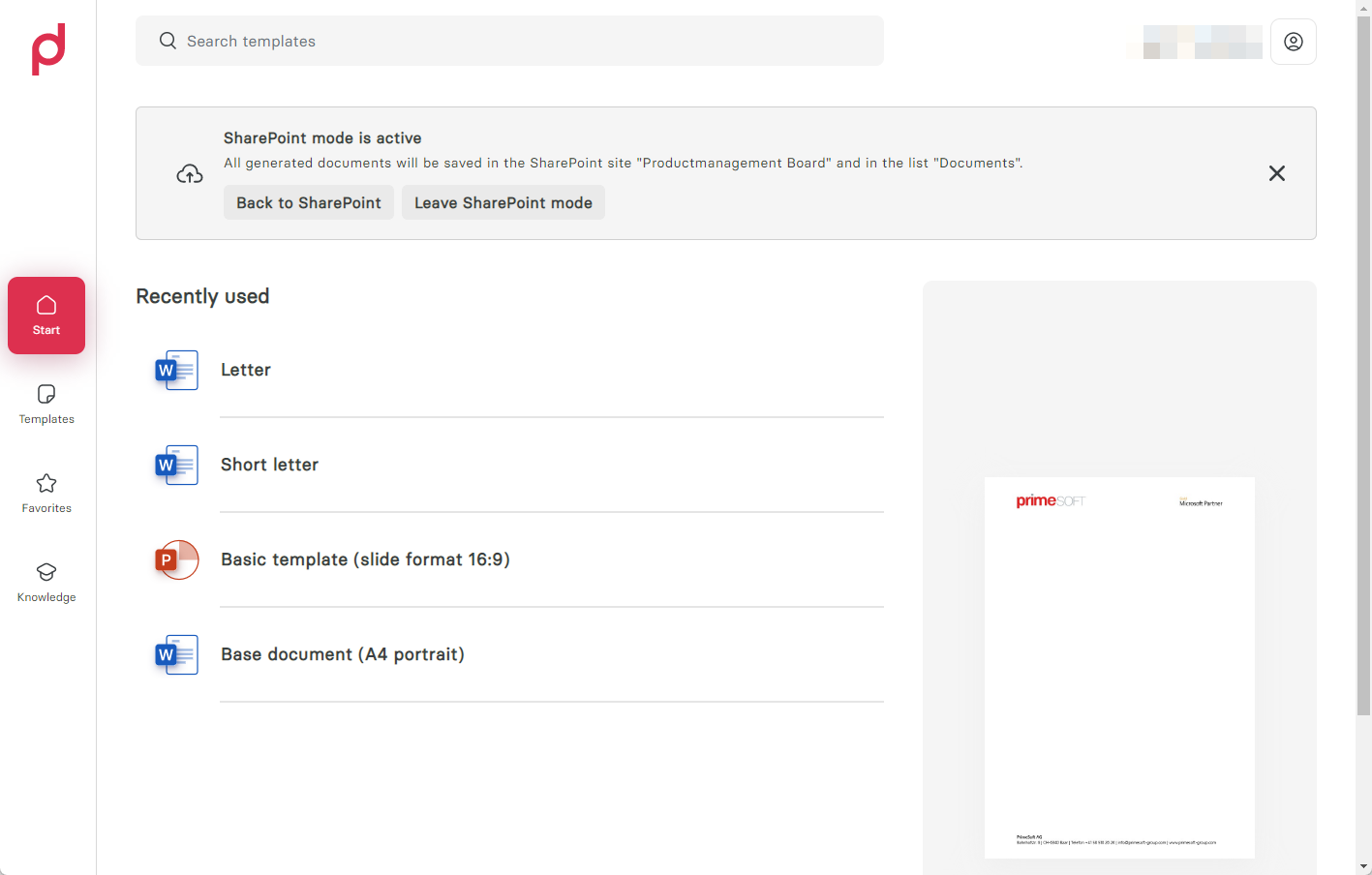
Via the toolbar button the user is redirected to the primedocs web application, which stores the created documents directly in the respective SharePoint list:
Installation
Requirements
- The SharePoint app only works with Office 365 / Entra ID (Alt: Azure Active Directory) logins, as generated files are stored in the user's name.
- The Entra ID App Registration needs the scopes
Sites.ReadWrite.All,Files.ReadWrite.Allas delegate permissions (see Entra ID Apps). - Only web-enabled templates are supported (templates released for primedocs Web, the Office web add-ins and server-side document generation).
- Currently, only document libraries in the top-level site of a site collection are supported. primedocs cannot save documents from libraries in subsites.
.sppkg Installation
A SharePoint app package (.sppkg, primedocs-sharepoint-extension.sppkg) is available for the installation. It is part of the primedocs server package (in the _Clients subfolder) and can alternatively be obtained from PrimeSoft.
Installation is done via the App Catalog of the SharePoint administration:
- Upload the
.sppkgto the tenant App Catalog. - Deploy the app in the dialog that appears. If it is deployed to all sites in the organisation, no per-site activation is required. To show primedocs only on specific sites, see Deploy to selected sites only.
- The toolbar button is then available in the document libraries of the SharePoint sites.
Configuration
The primedocs SharePoint App reads its configuration from the primedocsSettings list. It looks for the list first in the site that contains the document library and then in the tenant root site (for example https://contoso.sharepoint.com). A list in the root site therefore applies to all sites. A list in an individual site takes precedence there, for example to use a different primedocs instance.
Create the SharePoint list
- In the tenant root site (or in the desired site), create a list named
primedocsSettings. - Add a column named
Valueof type Single line of text to this list. - Grant all users of the primedocs SharePoint App read access to the list. The app reads the list with the permissions of the signed-in user.
Add the configuration entry
- Create a new item in the list:
- Title:
TemplatePickerUrl - Value: URL to the primedocs web application in this format
https://{INSTANCE-NAME}/app/web/sharepoint
- Title:
This URL is used by the SharePoint App to redirect the user to the corresponding primedocs web application when the toolbar button is clicked.
Deploy to selected sites only
By default, the button appears in every document library for which the app finds a configuration. primedocs can be restricted to specific sites in two ways.
Option A: Control through the configuration. The app remains deployed to all sites.
- Do not create the
primedocsSettingslist in the tenant root site. - Create the list with the
TemplatePickerUrlitem only in the sites where primedocs should be available.
In all other sites the app finds no configuration and does not show the button. The extension is still loaded there and looks for the list when a library is opened.
Option B: Install the app in individual sites only.
- When deploying in the app catalog, do not enable the option to make the solution available to all sites in the organisation.
- In each desired site, add the app "primedocs for SharePoint" under Site contents › New › App.
- Set up the configuration as described above, in the site itself or in the tenant root site.
The extension is then loaded only in these sites.
Technical details
The installed SharePoint app adds additional parameters (saveLocationSharePointSiteId, saveLocationSharePointSiteName, saveLocationSharePointFolderPath, saveLocationSharePointListId, saveLocationSharePointListName, saveLocationSharePointUrl, manifestVersion) to the configured URL when the button is triggered, so that primedocs can store the documents in the correct document library. How the app works and which network connections it involves is described in SharePoint.
Troubleshooting
General notes on the rollout (deployment duration, reachability of the primedocs instance) can be found under Troubleshooting: add-in rollout.