Office Desktop Add-In
This page only refers to the “modern” (JavaScript-based) Office Add-Ins, which are also available for macOS.
The COM Add-Ins are available for the classic Windows Office programs: Client Installation
Overview
The primedocs Add-In for Office offers a TaskPane to access Office templates.
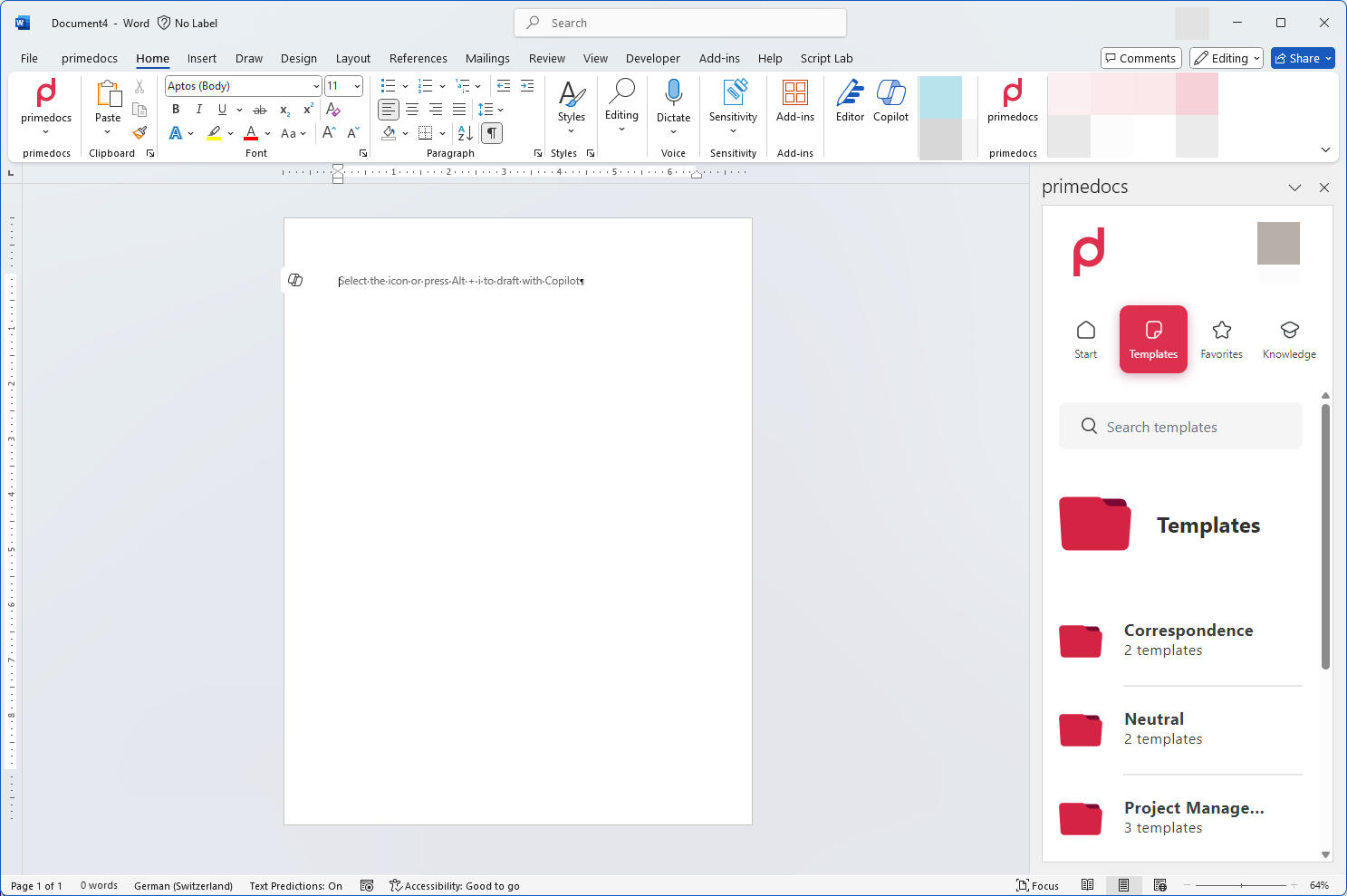
The Add-In is available in Word, Excel and PowerPoint.
There is a separate Add-In for the new Outlook: Outlook New Add-In
Prerequisites
- Microsoft 365 or an Office version with support for Office web add-ins (Office.js) on Windows or macOS.
- Reachability of the primedocs web application via HTTPS from the workstation.
- Distribution of the add-in via the Microsoft 365 Admin Center.
Installation
Configure primedocs.config
The Office Add-In must be configured in the primedocs.config.
Any GUID can be used as the id.
<primedocs>
...
  <officeAddin id="[GUID]" namePrefix="" />
</primedocs>
The namePrefix can be used if there are several environments. The Add-Ins are then named in the form {namePrefix} primedocs.
After changing the primedocs.config, the web applications should be restarted.
Generate Manifest
You can then generate the Office Add-In manifest via a link:
| Add-In | Manifest URL |
|---|---|
| Office | https://your-url.example.com/app/api/manifest/officeaddin |
Microsoft Admin App Installation
The generated manifest can then be uploaded and distributed via Microsoft 365 Administration.
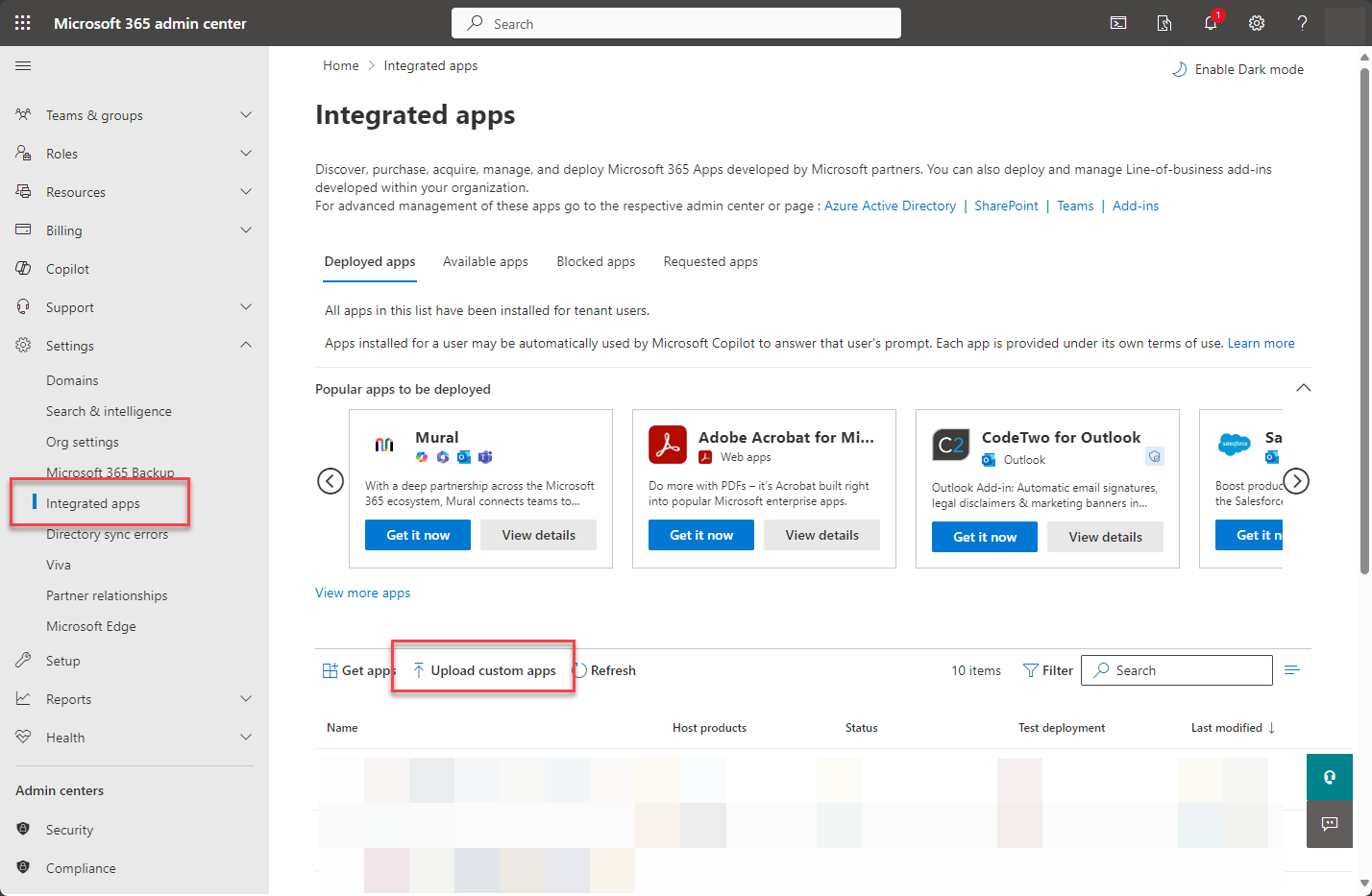
The rollout of the app may take some time.
The distribution and access management of the app is carried out exclusively by Microsoft Administration.
The manifest is generated from the installed server version on every request. If a server update raises the manifest version (<Version> element in the manifest), regenerate the manifest and update the app in the Microsoft 365 Admin Center with the new file so that Microsoft distributes the change to users. Which manifest version users actually run is shown in Client usage.
If the add-in does not appear after distribution, see Troubleshooting: add-in rollout.