Check my profile
Your profile provides the sender details for every document: name, function, phone, e-mail and the address of your organisational unit. primedocs creates a profile for you the first time you sign in. Before creating your first document, it is worth taking a look.
Applies to: primedocs Web and primedocs Desktop. The profile is the same in both places.
Prerequisite: you are signed in and, in primedocs Desktop, the setup wizard is complete (see Sign in and open primedocs).
What to check
- User data: first name, surname, function, phone, e-mail. These come from your organisation's directory (Active Directory or Entra ID) and are updated automatically.
- Organisational unit: company name, department, address, logo. These come from the organisational unit assigned to your profile.
- Profile picture and signature image: if your templates use them.
In primedocs Web
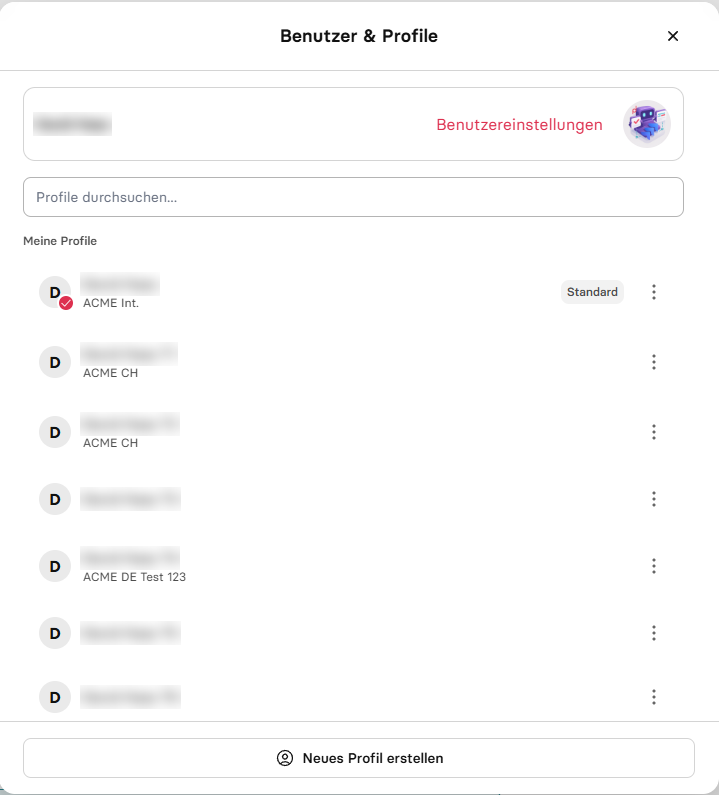
- Click your name at the top right and choose User & Profiles.
- Open User settings and check the user data. Fill in editable fields and Save.
- Back in User & Profiles, open your profile and check the details of the organisational unit.
In primedocs Desktop
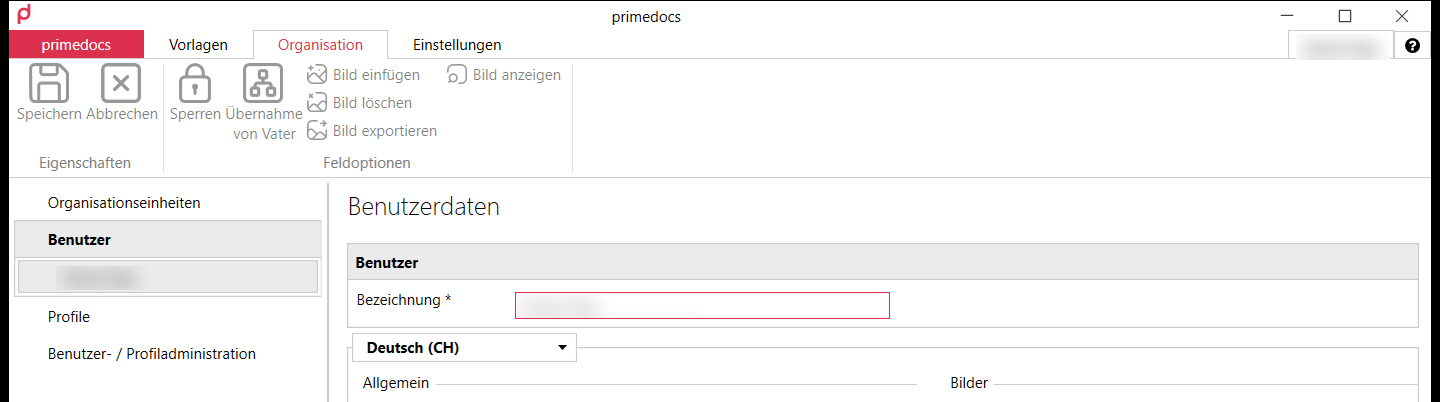
- Switch to the Organisation tab.
- Choose Users on the left, check the details and confirm with All OK in the yellow bar.
- Choose Profiles on the left and check the details of the organisational unit. Save changes with Save.
If something does not work
If a value was taken over wrongly or is outdated, for example an old phone number, report it to your IT support. They check the source and how the value is transferred to primedocs, and arrange the necessary correction. The value is not changed in primedocs itself.
If a profile deliberately needs a different value, for example another job title for a second role, enter it directly in the profile. The value then applies only to that profile and is no longer overwritten. How this works and how to create further profiles: Profiles and deputisation.
Next
My first document: from template to finished letter in three steps.