My first document
A document in primedocs always takes three steps: choose a template, fill in the fields, create. This page walks through them once, in primedocs Web and in primedocs Desktop. All options in detail: Creating a document.
Applies to: primedocs Web, primedocs Desktop. Which templates and fields you see depends on your organisation, so the examples may differ.
Prerequisite: you are signed in and have checked your profile (see Check my profile). What can go wrong during creation is under Creating a document.
In primedocs Web
- Open Templates and choose a folder, for example "Correspondence". Or type into the search box at the top.
- Click the template. The template form opens, with a preview on the right.
- At the top of the form, check Profile and Language. The profile determines the sender, the language the document.
- Fill in the fields. Mandatory fields are marked with an asterisk. The Tab key moves from field to field.
- Click Create & Download.
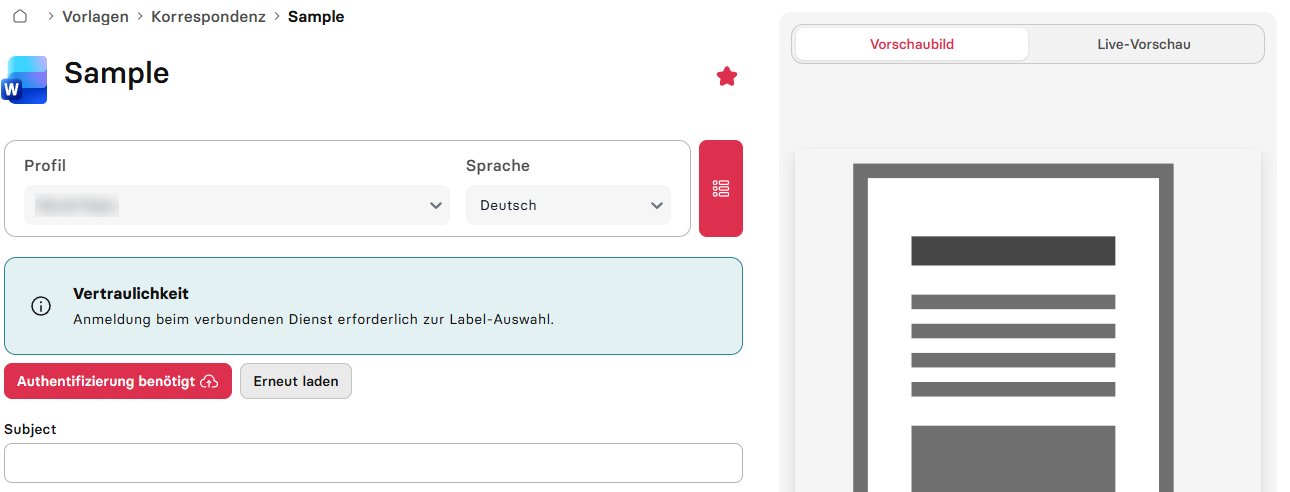
The document is then in your browser's download folder and opens in Word, Excel or PowerPoint. Depending on your organisation's setup, other outputs appear instead of the download, such as Save to OneDrive, or the document is filed directly in Teams, SharePoint or your business system (GEVER records management system such as CMI or Fabasoft, ERP, CRM).
If the template offers a Live preview, switch to it in the preview area on the right: the document builds up with your entries before you create it. On narrow screens, open the preview panel first.
In primedocs Desktop
- On the Templates tab, choose a template group on the left and select the template in the middle. A preview appears on the right.
- If you have several profiles: choose the profile at the top, and the document language.
- Double-click the template or click New document.
- Fill in the fields in the properties dialog. Mandatory fields are marked. Confirm with OK.
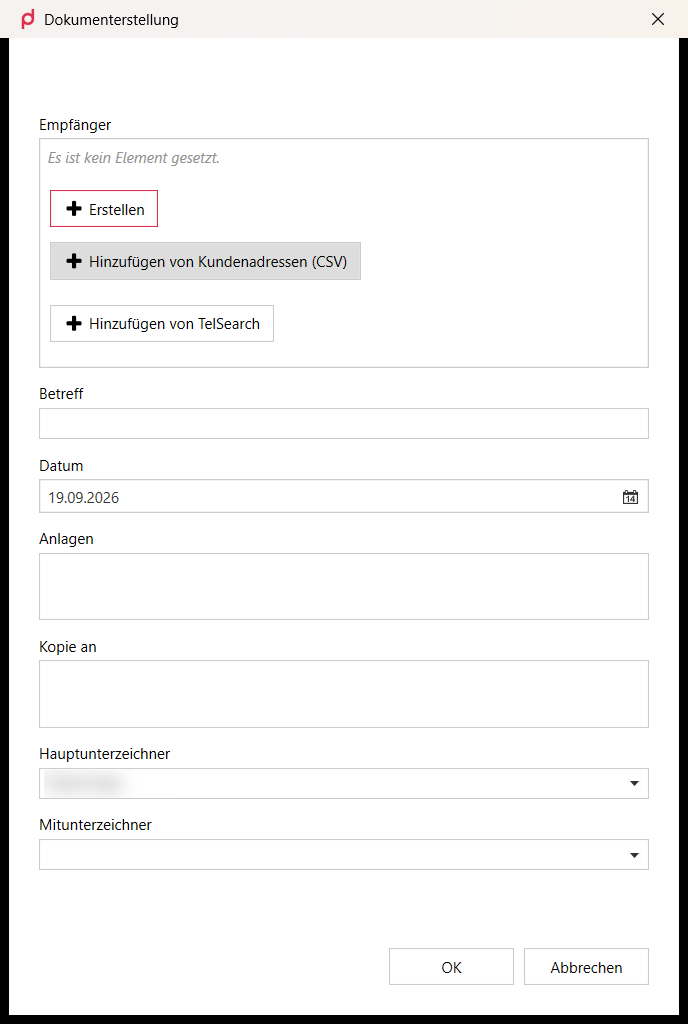
The document opens in Word, PowerPoint, Excel or Outlook (classic) with the primedocs tab (Office COM add-in). Edit, save, print or send it there like any other Office document. You need the tab only for the primedocs functions. The document can also be edited further without primedocs.
Changing details afterwards
If the recipient is wrong or a detail is missing, click Properties on the primedocs tab in Word. The properties dialog opens again, you change the details and confirm with OK. primedocs re-inserts them in the document. Likewise you switch the sender via Profile and the document language via Language.

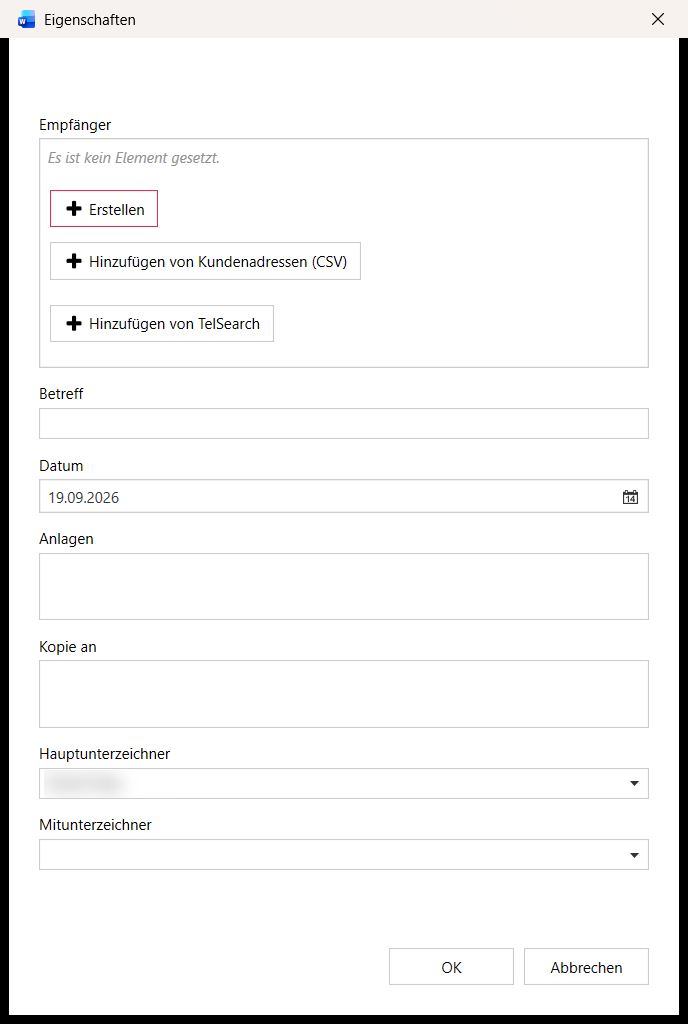
Changing details via Properties requires primedocs Desktop with the Office COM add-in. Without the add-in, create a document made in primedocs Web again with the corrected details.
Details that primedocs filled in, for example in header and footer, are changed via Properties or Profile on the primedocs tab, not directly in the text. Values changed by hand are lost the next time the document is updated.
Done
The document is a normal Office file (.docx, .xlsx, .pptx). primedocs is only needed to create it. Save it wherever you like and edit it later without primedocs.
Continue with the tasks that come up most often:
- Finding templates: search, favourites, shortcuts
- Inserting snippets: recurring content with one click
- Profiles and deputisation: signing for another role or another person