Sign in and open primedocs
primedocs uses your Microsoft 365 or Windows account. There is no separate primedocs password. Your user account is created automatically the first time you sign in.
Applies to: primedocs Web, primedocs Desktop, Office add-ins. Which of them you use has been decided by your organisation.
Prerequisite: your organisation has enabled primedocs for you. If you cannot sign in or no organisational unit is shown, your internal support can help.
Open primedocs Web
- Open your organisation's primedocs address in the browser. Your organisation provides the address.
- Sign in with your Microsoft 365 account if a sign-in window appears.
The start page shows your favourites, recently used templates and, under News, new or changed templates. The navigation on the left leads to Start and Templates, and your name at the top right opens the user menu.
Bookmark the address or install it as an app if the browser offers to. primedocs is then one click away.
Start primedocs Desktop
- Start primedocs from the desktop icon or the Start menu (type "primedocs").
- On first start the setup wizard appears. Click Next.
- Choose the organisational unit you belong to (department, branch) and confirm with Finish.
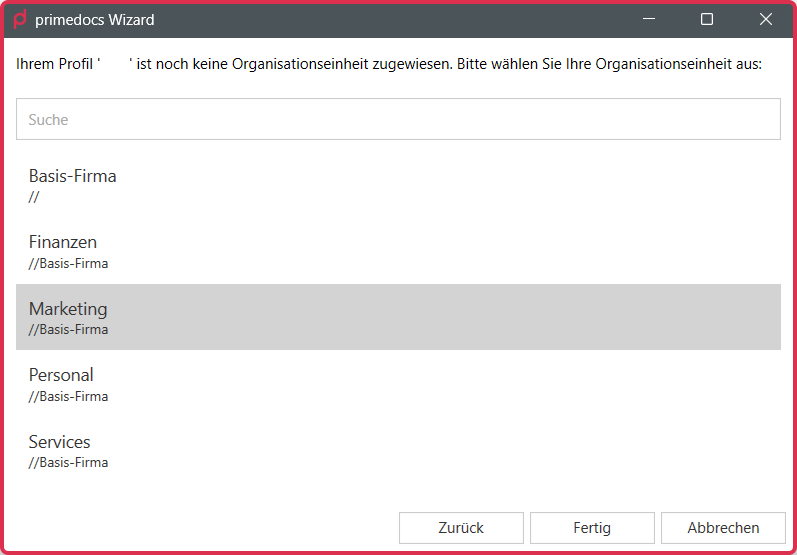
On first start primedocs Desktop synchronises the required data and is ready only afterwards. Later only changes are transferred. Whether you can also work without a connection to the server depends on your organisation's setup. See Working offline and synchronisation.
Open the add-in in Office
Word, classic Outlook, PowerPoint and Excel on Windows: if the Office COM add-ins are installed with primedocs Desktop, a document created with primedocs shows the primedocs tab in the ribbon. In Outlook the main window has the E-mail templates button. A new message shows the primedocs tab.
New Outlook, Outlook in the browser or on a Mac: in a new message, click the button with the primedocs logo in the ribbon. It opens the primedocs side pane, the task pane, with signatures and snippets.
Word, Excel or PowerPoint in the browser or on a Mac: if your organisation has deployed the Office web add-in, the primedocs button in the ribbon opens a task pane in which you choose templates and create documents, without primedocs Desktop.
Automatic sign-in
If your organisation has set up automatic sign-in (single sign-on) and you are already signed in to Microsoft 365, primedocs opens without a sign-in window. This applies to primedocs Web, primedocs Desktop, the Office add-ins and Microsoft Teams. If you sign out deliberately, this stays in effect until you sign in again.
If a sign-in window appears anyway, the browser opens: enter user name and password there, and primedocs takes you back automatically.
If something does not work
| You see | What helps |
|---|---|
| Sign-in fails or no organisational unit appears | Ask internal support to check sign-in and releases. |
| The sign-in window appears on every start | Sign in once. If it keeps appearing, have it checked whether automatic sign-in is set up and a session can be established. |
| primedocs Desktop stays on synchronisation for a long time on first start | The first synchronisation can take longer. In case of an error message or no progress, contact support. |
| The tab or the primedocs button is missing in Office | Have installation, deployment and activation of the add-in checked. See Help and troubleshooting. |
Next
Check my profile: see which details primedocs uses to sign your documents.